The Vitric Bundle
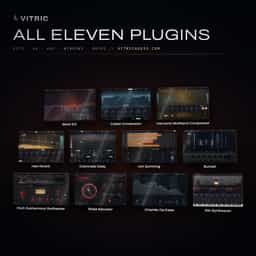
Eleven plugins. One collection.
SAR 10.83/m or SAR 249.99 SAR 1,799.99
A freeform parametric EQ with 24 bands, any of them dynamic, any of them placed in mid, side, left or right. Slopes to 96 dB/oct and an analyzer that draws pre and post at the same time. Zero latency by default, 2x or 4x oversampling when you want it.
The first-call EQ.
A freeform parametric EQ with 24 bands, any of them dynamic, any of them placed in mid, side, left or right. Slopes to 96 dB/oct and an analyzer that draws pre and post at the same time. Zero latency by default, 2x or 4x oversampling when you want it.
The first-call EQ.
Eleven plugins. One collection.
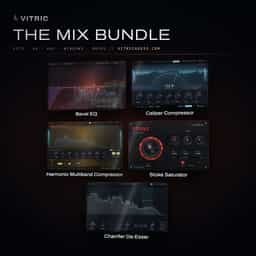
The mixing core: tone, dynamics, drive and control.
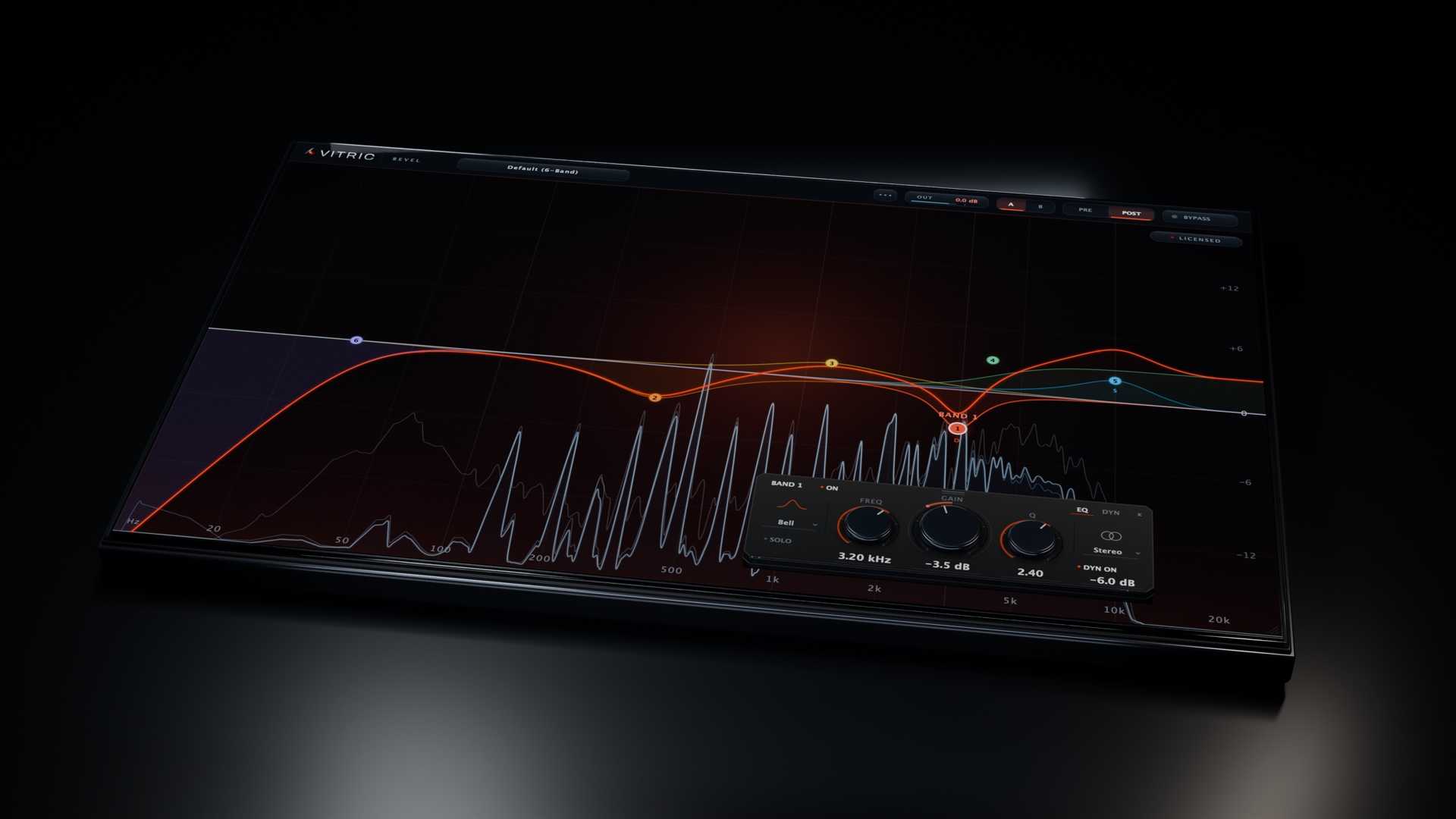
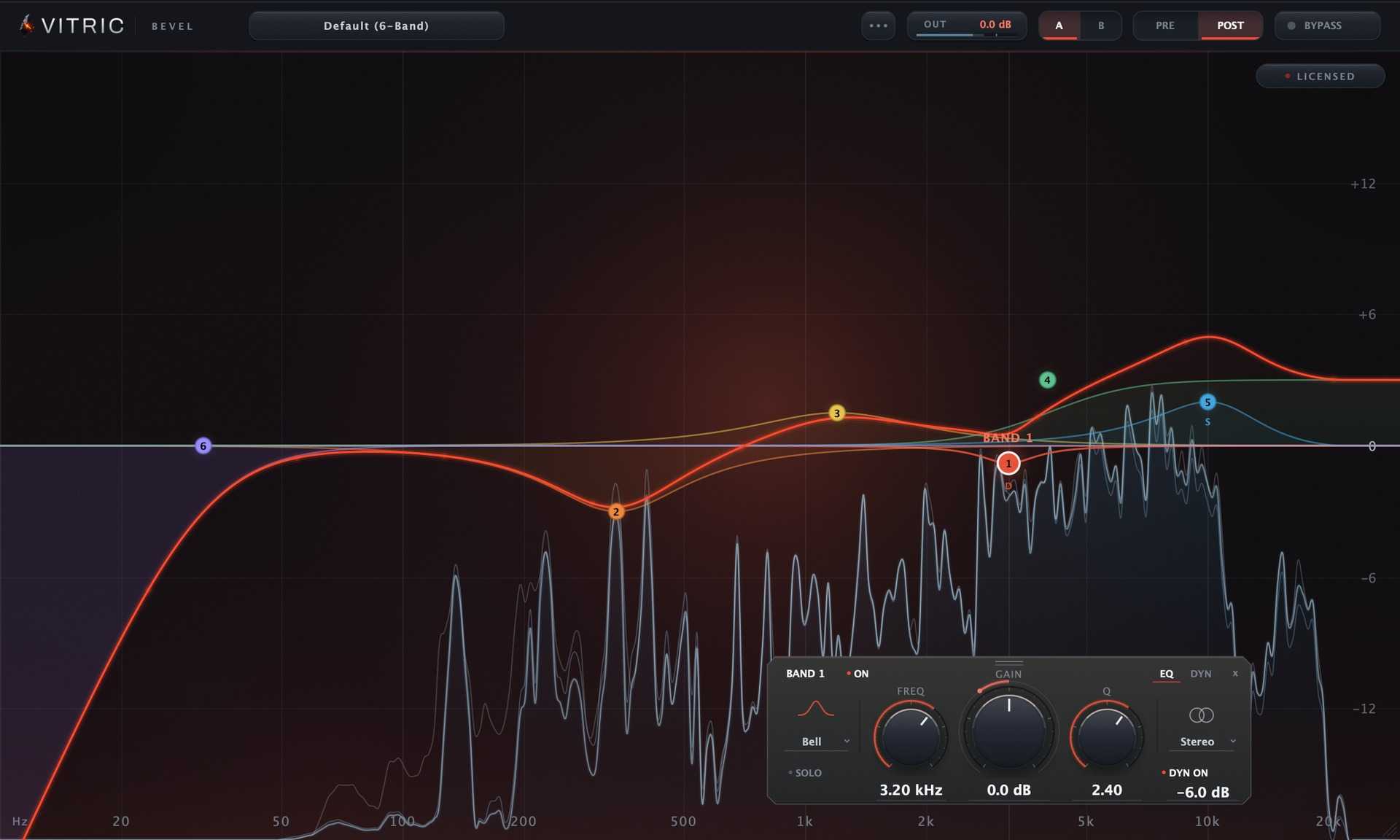
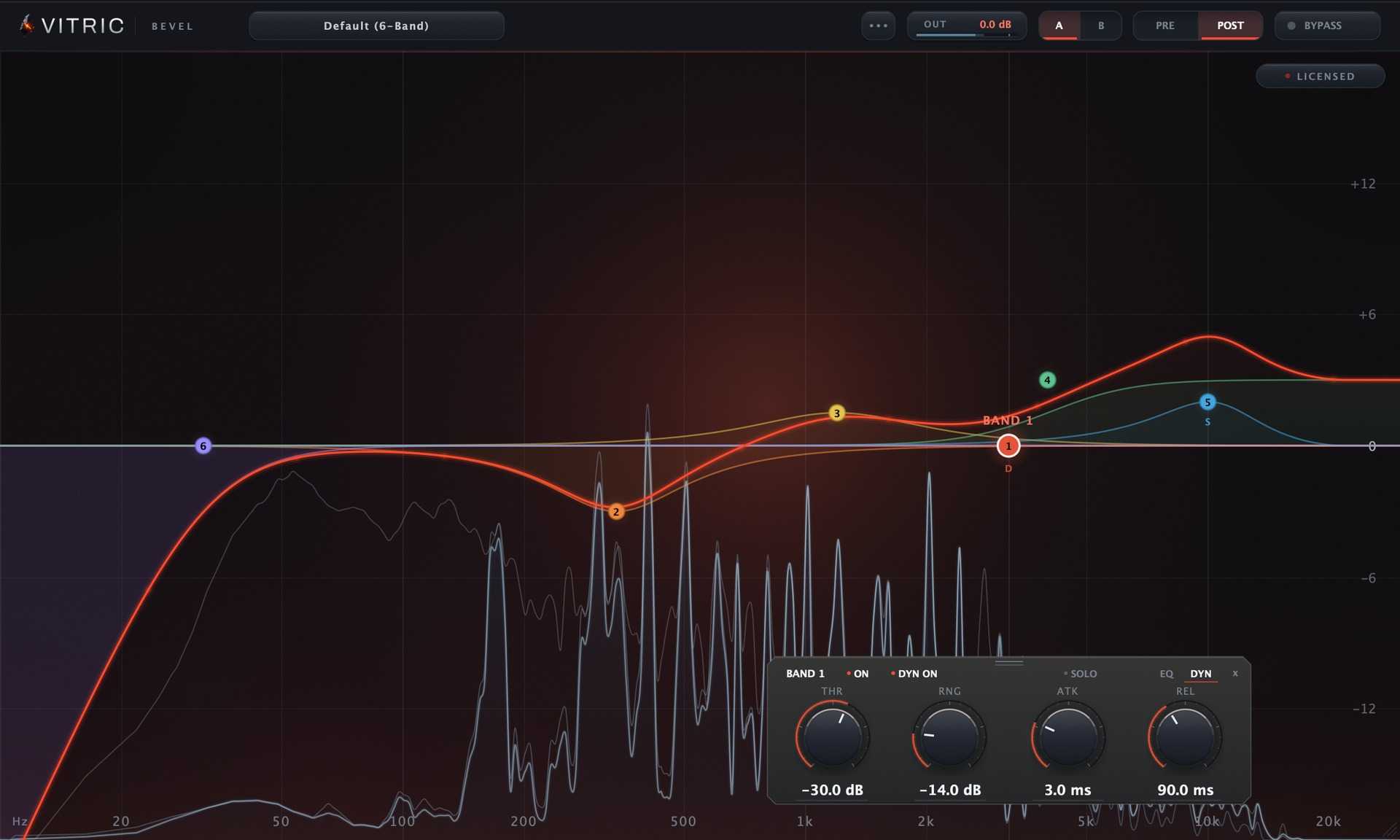
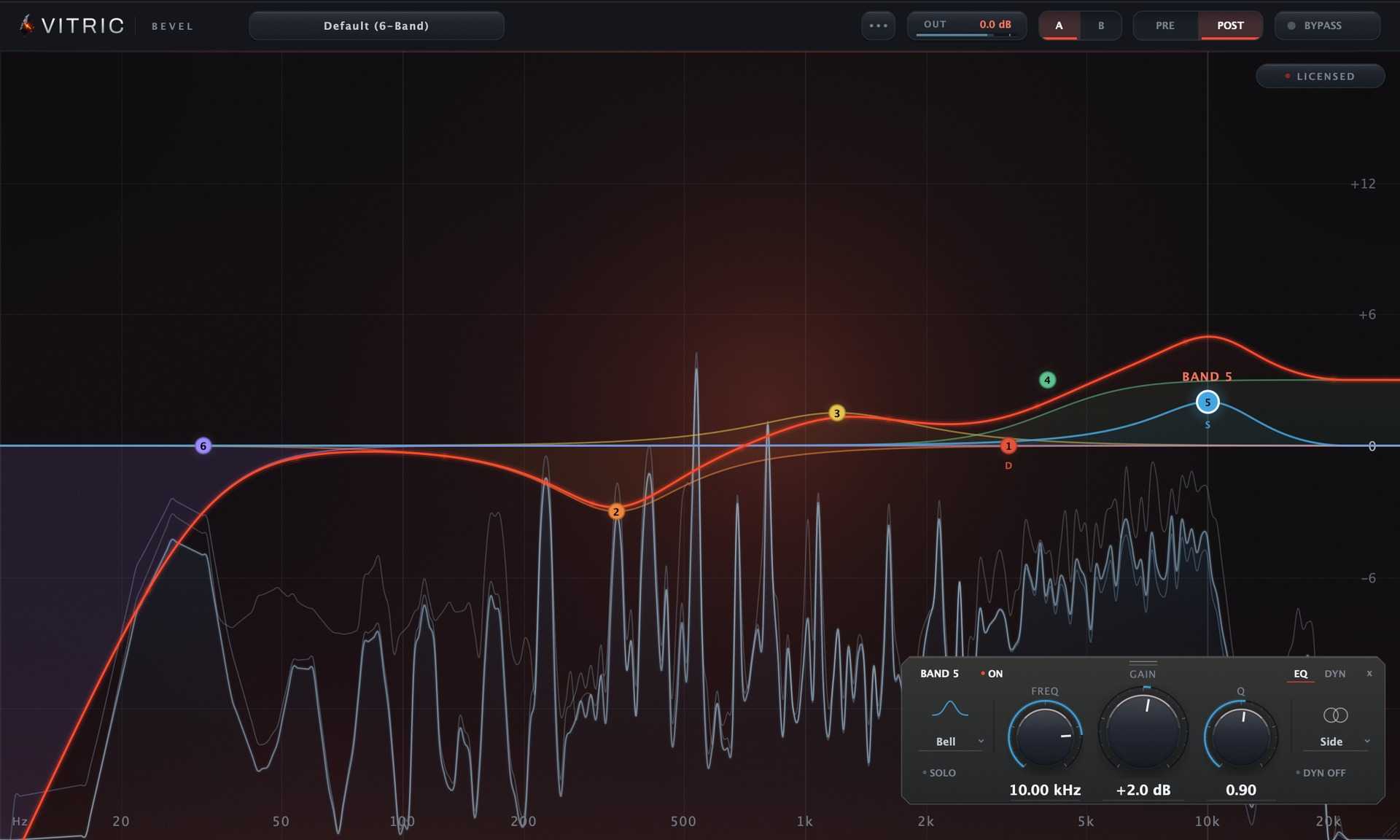
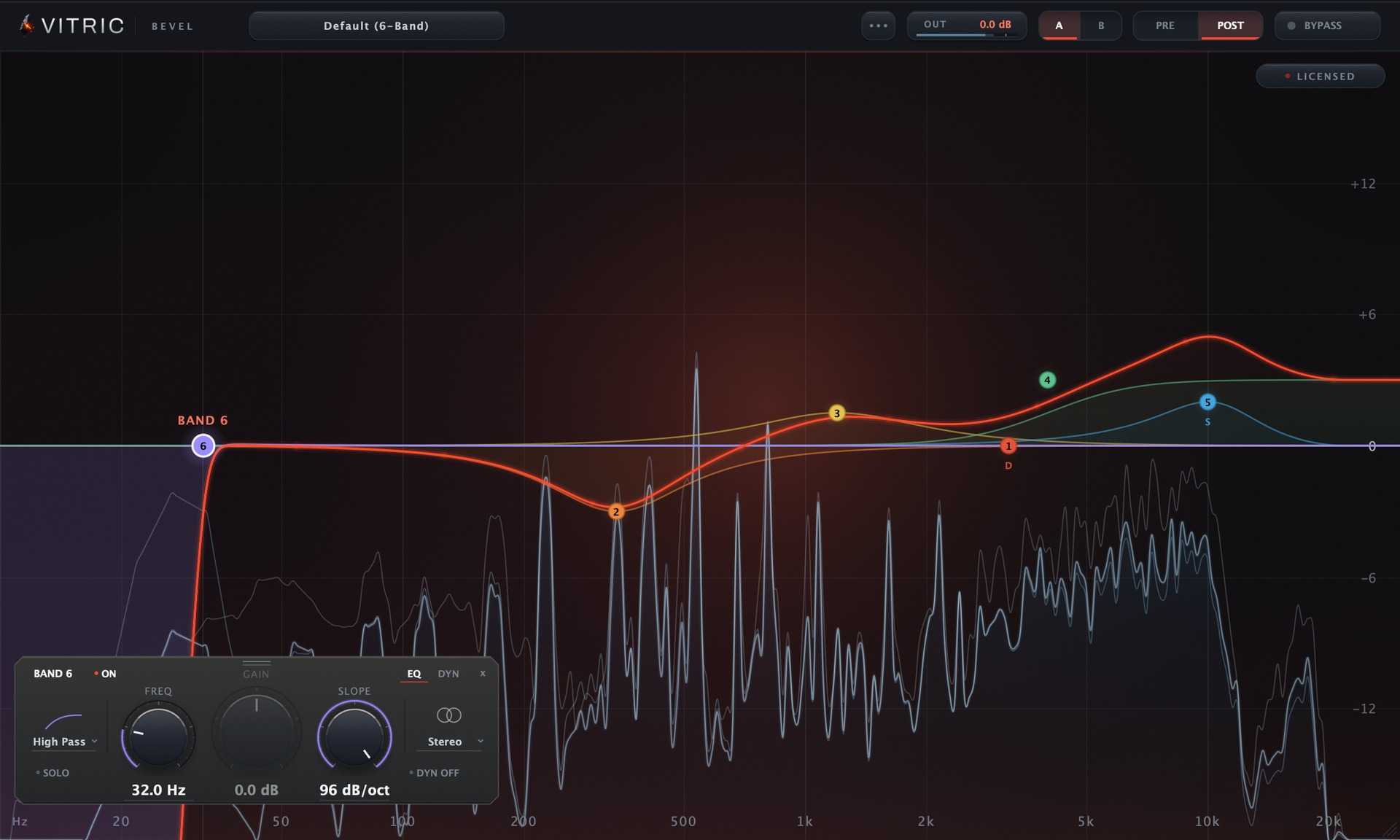
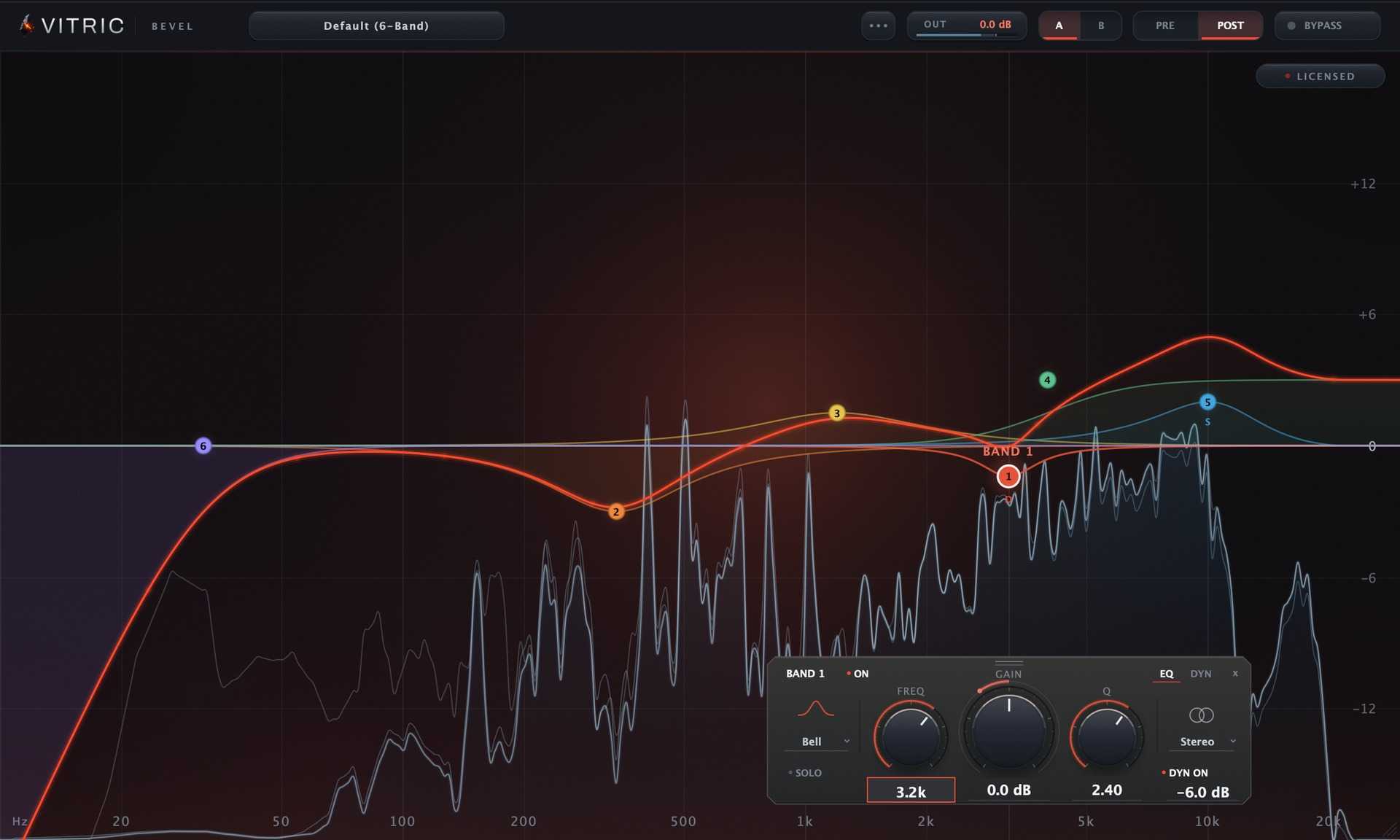
Bevel EQ is an equalizer, the tool that turns specific frequency ranges up or down, and it opens empty so you add only the bands you need. Double-click the curve to add a band, set its frequency, and boost or cut by up to 30 dB on shapes with gain. Any of the 24 band slots can be a bell, a shelf, a notch, a high pass or a low pass, working on the whole stereo image, one channel, the middle or the sides. Solo a band to hear the region it covers, or make a bell or shelf dynamic so it moves only when the music needs it. The display draws the sound going in and coming out together, so you watch the after trace drop away from the before trace, and hovering names the frequency and nearest note. The spectrum is drawn by the interface, not the audio engine, so it costs nothing in your audio path. The default Quality setting, Zero Latency, adds no delay, so Bevel can sit anywhere in a chain, with 2x and 4x settings available. Nine factory presets, two A/B slots and auto-gain let you compare fairly and hear what you changed.
Not enough reviews yet
Not enough reviews yet
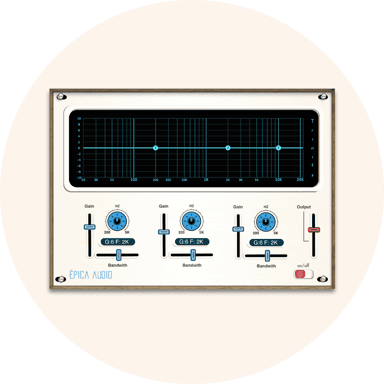
Precision EQ with Harmonic Saturation
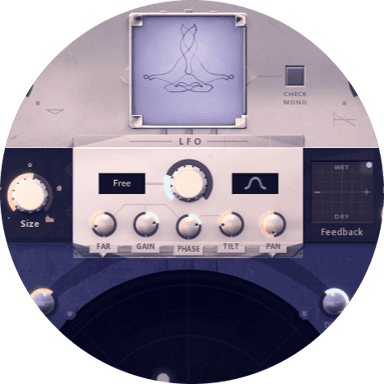
Powerful Stereo Spatialization Plugin

The Ultimate Synth Filter Ecosystem
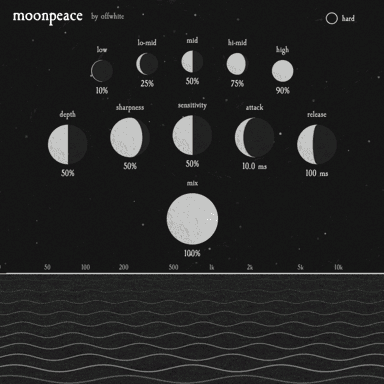
Lunar Resonance Suppressor
Precision in Simplicity.

Simple, powerful multi-band compressor
Channel strip for shaping, control and character
The simple route to professional vocals
The Quickest Route to Better Guitar Production
For guitar, piano, violins and everything acoustic