Audacity not recording? How to fix the mic, -9996 and other device errors
When Audacity won’t record, the cause is usually the device rather than Audacity itself. Open Audio setup, click Rescan audio devices and pick your microphone by name under Recording device, then make sure Windows or macOS allows Audacity to use the microphone. If an error code appears, such as -9996 or “Error opening sound device”, the table below matches it to its cause and its fix.
This guide starts with a checklist that clears most cases in a minute, then takes each error message in turn, with what you see, why it happens and what fixes it. It also covers silent and quiet takes, recording to cloud folders, multichannel interfaces, the macOS permission, and what to post on the forum if nothing here works.
Tested on Audacity 4.0.1 on macOS Sequoia and Windows 11. The error codes come up mostly on Windows, and their fixes follow the official Audacity support pages. Where Audacity 3 differs, a short note says so.
Audacity and voice tools on MuseHub


The 60-second checklist
Run these in order. Each one rules out a cause, and none of them needs an error code.
- Rescan audio devices. Click Audio setup in the top bar, choose Rescan audio devices, then open Recording device and pick your microphone or interface by name. A device plugged in after Audacity started can be missing until you rescan, and Audacity 4 picks it up without a restart. On Audacity 3, the command is Transport ▸ Rescan Audio Devices.
- Allow the microphone in the operating system. On Windows, open Settings ▸ Privacy & security ▸ Microphone (or press Win+R and type
ms-settings:privacy-microphone) and turn on Microphone access, Let apps access your microphone and Let desktop apps access your microphone. Audacity counts as a desktop app, so the last switch is the one that matters, and a Windows update can turn it off. On a Mac, see the macOS section below. - Check the device is not disabled. On Windows, press Win+R, type
mmsys.cplto open the Sound control panel, and go to the Recording tab. Right-click the list, tick Show Disabled Devices, then right-click your microphone and choose Enable. Rescan in Audacity afterwards. - Test the microphone outside Audacity. On Windows 11, open Settings ▸ System ▸ Sound, click your microphone and, under Microphone test, click Start test and talk for a few seconds. Then click Play next to Recorded sample to hear what Windows captured. The Sound control panel offers a live check too: in the same Recording tab, open the microphone’s Properties, go to the Listen tab and tick Listen to this device. If you hear yourself, Windows is getting a signal and Audacity can record it; untick the box afterwards. If you hear nothing, the fault is before Audacity. Check the cable, the mute switch, phantom power on a condenser mic and the device itself. On a Mac, speak while watching the input level in System Settings ▸ Sound ▸ Input.
- Check the recording level. Click the microphone button in the toolbar to open the Microphone level flyout and speak. The meter should move, with peaks between −18 and −6 dB. If it does not move, the slider may be at zero.
The Audio setup menu holds the device choices from step 1. Rescan audio devices sits below Recording channels, and the Recording device submenu opens to the right with the current microphone ticked.

If you are on Audacity 4.0.0, update to 4.0.1 before anything else. It removed a false “-9996 Invalid device” message that appeared when input monitoring could not open the device. It also fixed a Windows bug that kept the input on the system default device when names contained non-ASCII characters, such as accented letters (changelog).
Error messages at a glance
Audacity passes on the error its audio library reports, so the number tells you which part of the setup failed. The Audacity support site has a page for each code, linked in the sections below.
| Message | What it means | First fix |
|---|---|---|
| -9996 Invalid device | Audacity cannot open the device it is set to: it is unplugged, asked for a channel count it does not support, or held by another app | Rescan, then try another USB port and cable, another host and another channel count |
| -9997 Invalid sample rate | The device does not accept the project’s sample rate, or the playback and recording devices disagree | Set Windows and Audacity to the same rate, 44100 or 48000 Hz |
| -9998 Invalid number of channels | Recording channels asks for more or fewer channels than the device offers | Recording channels to 1, 2 or the highest number listed |
| -9999 Unanticipated host error | A lost USB connection, a missing microphone permission, or a device that cannot play while it records | Reconnect, check the permission, match the sample rates |
| Error opening sound device | Permissions, drivers, connections, or a request the device cannot meet | The checklist, then drivers and a full shutdown |
| No devices in the list | The device was plugged in after launch, or it is disabled in Windows | Rescan; enable it in the Sound control panel |
| A flat line and no error | The wrong device, the level at zero, or no signal reaching the computer | The level slider, then the Windows microphone test |
Error -9996: Invalid device
- What you see. Pressing Record brings up “-9996 Invalid device”. In forum threads it often follows an update.
- Why. The support page names three causes. The device was unplugged, has a loose or faulty connection, or is not a real audio device. You asked for a number of channels the device does not support. Or, on Windows with the WASAPI host, another app holds the device exclusively; ASIO4ALL, Voicemod and Voicemeeter can do this when set for exclusive access.
- Fix the connection. Use another USB port and another cable, plugged straight into the computer rather than a hub or dock.
- Switch the host. In Audio setup ▸ Host, try another one. On Windows the list holds MME, Windows DirectSound, ASIO and Windows WASAPI. Sometimes Windows WASAPI works where MME does not, and sometimes the other way round.
- Change the channel count. Under Recording channels, try 1 (Mono) and then 2 (Stereo). Some Realtek devices record only in mono, while others work only in stereo when recording a loopback stream.
- Free the device. Quit the voice changer or virtual mixer, then rescan.
Error -9997: Invalid sample rate
- What you see. Error -9997 when you press Record, sometimes only while other tracks play.
- Why. The device does not support the sample rate Audacity asks for. On Windows with WASAPI it also happens when you overdub and the recording device runs at a different rate from the playback device (support page). An unsupported channel count can trigger it too.
- Match the rates. On Windows 11, open Settings ▸ System ▸ Sound, click the device and pick a Format entry that ends in 44100 Hz or 48000 Hz (for example “16 bit, 48000 Hz (DVD Quality)”), then set Audacity to the same value under Audio setup ▸ Audio settings ▸ Default sample rate. In Audacity 4 that setting applies only to tracks you create afterwards, so record onto a new track. To convert a track that already holds audio, use its ⋯ menu ▸ Resample track…; Rate only relabels the track, so its audio plays faster or slower.
- Use one device for both directions. When you record desktop audio, set the same device for playback and recording.
- Then try another host and channel count, as for -9996.
Error -9998: Invalid number of channels
- What you see. Error -9998 the moment recording starts.
- Why. Recording channels asks for a count the device cannot record.
- Fix. Open Audio setup ▸ Recording channels and pick another value. The support page says 1 (Mono), 2 (Stereo) and the highest number on the list usually work, so an 8-channel interface should take 8.
Error -9999: Unanticipated host error
- What you see. Error -9999, sometimes after you fixed a -9996 and thought you were done.
- Why. It means the audio system failed for a reason it could not name. The support page lists the usual causes. The connection to a USB audio device was lost, the microphone permission is missing, or the device cannot play other tracks while it records, most often because the playback and recording sample rates differ.
- Check the permission first. On the Audacity forum, a -9996 that turned into -9999 on a Windows 11 laptop turned out to be the Let desktop apps access your microphone switch, which was off.
- Match the sample rates, as for -9997.
- Stop playback during recording. Audacity 4.0.1 always plays the existing tracks while you record and has no setting to turn that off. Muting the tracks does not help, because Audacity still opens the playback device for them, so test the recording in a new, empty project. On Audacity 3 the option is Transport ▸ Transport Options ▸ Hear other tracks during recording.
Error opening sound device
- What you see. In Audacity 4, a Recording error dialog that reads “Error opening recording device. Error code:” followed by the code, such as -9996 Invalid device. Audacity 3 shows the same message on Record, and “Error opening sound device” on Play, with a suggestion to check the host, the playback device and the project sample rate.
- Why. The support page puts it down to the hardware used for playback, whether that is permissions, drivers, connections, or asking the device to do something it cannot do.
- Pick devices by name. Choose the playback and recording devices by name in Audio setup instead of a generic entry, and set the project to 44100 or 48000 Hz.
- Keep USB and onboard audio apart on WASAPI. Windows cannot use WASAPI on a USB input while playback goes to the computer’s built-in sound card. Use MME or Windows DirectSound instead, or play back through the USB device too (common troubleshooting steps).
- Update the driver. In Device Manager, expand Sound, video and game controllers, right-click the device and choose Update driver. If the driver provider on its Driver tab is Microsoft, get the manufacturer’s driver instead; a generic driver is a common reason an input cannot be selected or records badly.
- Shut down fully. On Windows, a restart or a normal shutdown does not always reset the audio hardware. A full, clean shutdown fixed this error for a forum user after a restart had not. Hold Shift while you click Shut down, wait, then switch the computer back on. On a PC with Fast Startup turned on, this is the way to get a full shutdown.
Recording is silent or very quiet
A take that shows a flat line, or a waveform you can barely see, without any error, has one of four causes.
- The level is down. In Audacity 4 the Microphone level flyout sets the system input level, so it also moves the microphone level in every other app (Connect your microphone). Raise it until speech peaks between −18 and −6 dB. On Audacity 3, the recording slider sits under the recording meter in the toolbar, where it is easy to miss.
- The device has no system level. Some USB interfaces and other external devices, especially on a Mac, have no input level the operating system can change. The Microphone level slider is tied to that system level, so it has nothing to move, yet Audacity 4 neither greys it out nor stops it dragging (Audacity 3 greys it out). Set the gain with the knob on the device.
- The wrong device is selected. A webcam, the laptop’s built-in mic, or an entry marked (loopback) records something other than your microphone. Pick the device by name.
- The signal never arrives. Check that cables are seated, phantom power is on for a condenser mic, no mute switch is on and no fader is down (only recording silence).
A Bluetooth headset that records silence is a sample-rate problem, and how to record audio in Audacity covers the workaround along with the level and the meter. An entry marked (loopback) is the right device only when you want the computer’s own sound; recording computer audio in Audacity covers WASAPI loopback and the cases where it records nothing.
Record to an internal drive
Audacity needs fast, uninterrupted access to the disk while it records. A project or temporary folder inside OneDrive, another synced cloud folder, a network share or a USB stick puts a slow, sometimes interrupted connection between Audacity and the take.
The forum moderators give the same advice (forum thread). Record to the computer’s internal drive and keep Audacity’s temporary files there too. Use the cloud or a stick only to back up finished projects, and move a project back to the internal drive before you open it again.
Multichannel interfaces and ASIO
A RODECaster, a Zoom H6 or another interface with many inputs records most reliably on Windows through ASIO, the driver standard most audio interfaces provide. Using it in Audacity used to mean a special build. The official Windows builds of Audacity 3.7.9 and 4.0 now include ASIO playback and recording (3.7.9 and 4.0.0 changelogs; confirmed on the forum by Muse’s Leo Wattenberg).
- Install the manufacturer’s ASIO driver for the interface.
- Choose ASIO as the host in Audio setup ▸ Host, then the interface under Recording device. The list names the ASIO driver, such as “ASIO for Generic USB Device”, with a System default entry above it. A PC’s built-in sound can show up there too, as “Realtek ASIO”, for example.
- Set Recording channels to the number of inputs you want to record, or to the highest number listed, as for -9998.
If the interface can also record to an SD card, use that as the fallback. A hardware recorder has fewer settings to go wrong than a computer, and you import the files into Audacity afterwards.
macOS: the microphone permission
macOS blocks the microphone for any app you have not allowed. Audacity 4 asks for it when it starts, before you record anything, with the message “Audacity 4” would like to access the microphone. Click Allow. If you clicked Don’t Allow, choose Apple menu ▸ System Settings, click Privacy & Security in the sidebar, click Microphone and turn Audacity 4 on. Audacity 3 has a switch of its own in the same list, named Audacity, so turning on one does not cover the other.
After the switch changes, in either direction, macOS offers Quit & Reopen. Audacity gets the new setting only after it restarts, so click Quit & Reopen, or quit and reopen it yourself.
If an interface does not appear under System Settings ▸ Sound ▸ Input, macOS has not detected it, and Audacity cannot list it either. Install the manufacturer’s driver or try another cable.
Still stuck? What to post on the forum
The Audacity forum and the official Discord, linked from the contact page, are where the people who answer these questions every day can help. A first post with these details gets an answer instead of a list of questions.
- The Audacity version, from Help ▸ About Audacity.
- The operating system and its version, such as Windows 11 24H2 or macOS Sequoia 15.7.
- The device: make, model and how it connects (USB, an audio interface, Bluetooth, the headset socket).
- What Audio setup shows: Host, Recording device and Recording channels.
- The exact error text or code, and whether it appears on Record, on Play or on launch.
- What you already tried from this page, and whether the Windows microphone test (or the macOS input meter) picks up a signal.
On Audacity 3, Help ▸ Diagnostics ▸ Audio Device Info saves a report of every device and the sample rates it supports, which helps whoever answers.
Once it records
A recording that works can still carry room noise and an uneven level. Audacity’s built-in Noise reduction removes a steady hiss once you give it a noise profile, and noise reduction in Audacity walks through it. For speech, a voice plugin goes further. It runs as a realtime effect on the track, so you can adjust it while the take plays. Both picks below are free on MuseHub and appear under Add effect once Audacity validates them on the next start.

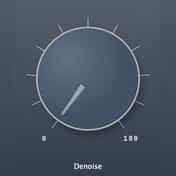
Viator Voice Denoiser by Viator DSP has one knob. Turn it up until the room tone drops away and stop before the voice thins. It needs no noise profile, so it handles noise that changes mid-sentence.
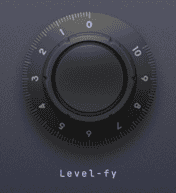
Viator Voice Leveler, also by Viator DSP, evens out a voice that drifts between loud and quiet, with one knob in place of a compressor’s threshold and ratio. Audacity lists it as voice-leveler under Viator DSP, as a VST3 and, on a Mac, also as an Audio Unit. If it is missing right after the install, open Effect ▸ Plugin manager and click Rescan plugins.
The full field for spoken word is in the best podcasting plugins.
FAQ
Next steps
With the device working, how to record audio in Audacity covers the level, monitoring and overdubs, and how to use Audacity covers the rest of the window. For voice cleanup there is more in the plugin catalog. Get Audacity and the voice plugins in one place — download MuseHub free.