Audacity can change a voice after it is recorded, and Audacity 4 does it in two ways. The built-in way is to duplicate the take, set the pitch in the clip’s pitch and speed dialog, then apply Effect-menu effects to the copy. A robot is a comb filter or the Vocoder, a telephone is a band-pass from 300 to 3,400 Hz, and a demon is a lower pitch with delay and reversed reverb. To hear every change while the track plays, put plugins such as the free Graillon 3 in the realtime effects panel instead.
This guide explains why pitch alone does not disguise a voice, then gives both routes and starting settings for five voices (robot, malfunctioning android, demon, FM radio and telephone). It ends with a free plugin chain you can save, male-to-female changes, and the mistakes that bury the words.
Tested on Audacity 4.0.1 on macOS Sequoia and Windows 11. Shortcuts are written for Windows; macOS uses Cmd where Windows uses Ctrl.
Voice-changing tools for Audacity



Why pitch alone does not change a voice
A voice has two parts you can hear. Pitch is the note you speak on. Formants are the resonances of your throat and mouth, which stay roughly in place whatever note you use. A plain pitch shift moves the formants too, which is the chipmunk sound going up and the slowed-tape sound going down. A moderator made the same point in a voice-changer thread on the Audacity forum. When a large man and a small girl whisper, he wrote, you cannot tell them apart; once they speak, you can. So a character voice is built from effects that reshape the sound (filters, modulation, distortion, echoes), with pitch as one ingredient.
What you need
- Audacity 4. It is free. Get it through MuseHub on Windows and macOS, or from audacityteam.org, which also has a Linux build.
- A dry voice recording. Record close to the microphone, with no music and no reverb. Every recipe exaggerates what is in the take, room echo and hiss included, so run noise reduction first.
- The plugins, for the realtime route. Graillon 3, Echo1 and Phase One are free on MuseHub, and so is the distortion: Setekh on macOS, Hot Switch Jr on Windows, where MuseHub does not list Setekh. They need a free MuseHub account; Audacity itself installs without one.
How voice effects work in Audacity 4
- Built in, on a copy. Effect-menu effects rewrite the selected audio, so duplicate first. Select the track and choose Tracks ▸ Duplicate (also in the track’s ⋯ menu), or press Ctrl+D (Edit ▸ Duplicate) for a selection. Then mute the original with its M button and work on the copy.
- Pitch on the clip. Right-click the clip, or open its ⋯ menu, and choose Open pitch and speed dialog. Type the change under Clip pitch, in semitones and cents. The Optimize for voice checkbox keeps the resonances in place, so the speaker stays a person instead of a chipmunk. Set the pitch before the other effects. The first Effect-menu effect you apply writes the pitch change into the audio without asking; afterwards the dialog shows 0 semitones. Effect ▸ Pitch and tempo ▸ Change pitch does the same job destructively, without the voice option.
- Realtime, with plugins. The realtime effects panel opens with E or the track’s Effects button. Its own effects are Bass and Treble, Compressor, Limiter and Reverb, so filters, delay, distortion and pitch need plugins there. A realtime effect processes the track as it plays, stays adjustable while the track loops, and is applied when you export.
On Audacity 3 the Effect menu also holds Distortion, Phaser and Echo. Audacity 4 has none of the three, so those parts of a recipe go through plugins.
If a filter, the Delay or the Vocoder answers “Effect not found” on a Mac, as it did on one of our test machines, the fix is in the FAQ below.
Every example on this page starts from the same dry sentence. Listen to it first, so you can hear what each recipe adds.
The five voices at a glance
| Voice | Built in (Effect menu, on a copy) | Plugin route (realtime) | Starting values |
|---|---|---|---|
| Robot | Comb filter (free Nyquist plugin) or Vocoder | Graillon 3 hard-tuned with its bitcrusher, then Setekh or Hot Switch Jr | Comb frequency 440 Hz, then sweep |
| Malfunctioning android | High-pass and Low-pass filter, pink noise | Phase One phaser with a triangle LFO | Rate about 1.25 Hz, band 300–3,400 Hz |
| Demon | Clip pitch down, High-pass filter, Delay, reverse reverb | Graillon 3 pitch and formants down, Echo1, Reverb | About −5 semitones, high-pass near 80 Hz |
| FM radio | Low-pass filter, then the realtime Compressor | A multiband compressor | Low-pass 15,000 Hz at 48 dB per octave |
| Telephone | Setekh or Hot Switch Jr, then High-pass and Low-pass filter | The same distortion for the edge | 300 Hz and 3,400 Hz at 24 dB per octave |
The values are starting points. Move one control at a time and compare with the muted original.
Robot voice
A comb filter mixes the voice with a copy of itself delayed by a couple of milliseconds. That reinforces one frequency and every multiple of it, so each syllable rings at the same metallic pitch. A regular on the Audacity forum answered a robot-voice question with exactly that effect.
- Duplicate the take and select the copy.
- Install the comb filter once. Comb Filter by David R. Sky is a free Nyquist plugin on the Audacity plugin site’s filters page. Download the
comb.nyfile, choose Tools ▸ Nyquist plugin installer and select it. A Success message confirms that the file was written. Then open Effect ▸ Plugin manager and click Rescan plugins. The plugin now sits under Effect ▸ Nyquist ▸ n/a ▸ Comb filter; its file names no author, so Audacity files it under n/a instead of a maker. - Apply it at the defaults. Comb frequency 440 Hz, Comb decay 0.025, Normalization level 0.95. Preview, then move Comb frequency until the ring sits where you like it. A longer decay makes the ring last longer.
- Or use the Vocoder. Effect ▸ Distortion and modulation ▸ Vocoder imposes the voice’s changing spectrum on a carrier. It works on a mono track with its own carrier, so the voice needs no second channel. Raise Amplitude of white noise (percent) from its default of 0 for a whispering machine.
Audacity 4 has no distortion effect for the grit, so the plugin route adds it. Put Graillon 3 on the track, switch Correction on and set Smooth to its minimum, so every syllable snaps to a fixed note. Raise Quantize, its bitcrusher, for digital grain, and add the distortion after it with its drive low. That is Setekh on macOS and the WARM stage of Hot Switch Jr on Windows.
Listen for the metallic ring on the long vowels, then for the grit on the consonants.
Malfunctioning android voice (Ash in Alien)
The faltering voice of Ash, the android in the 1979 film Alien, came up in an Audacity forum thread. The answer had three parts. A phaser sweeps notches through the spectrum, driven by a triangle-shaped LFO (low-frequency oscillator). A band-pass removes the bass and treble. Faint pink noise keeps the sweep audible between words.
Audacity 4 has no phaser, and the one in Audacity 3 only sweeps with a sine wave, according to the same thread. The phaser therefore comes from a plugin.
- Band-pass a copy. Duplicate the take, then apply Effect ▸ EQ and filters ▸ High-pass filter at 300 Hz and Low-pass filter at 3,400 Hz, both with Roll-off at 24 dB.
- Add the noise. Create a new mono track, select the same length as the voice, choose Generate ▸ Noise, set Type to Pink and Amplitude to 0.05. Lower that track’s volume until the hiss is only just audible between words.
- Put the phaser on the Master. In the realtime panel, scroll to the Master section, click Add effect and choose Phase One, so it processes the voice and the noise together. Switch it to Modern mode and set Rate to about 1.25 Hz, the speed the thread settled on after comparing with the film.

Phase One by NIVIEM is a six-stage phaser modeled on a 1971 unit, and its LFO is a triangle wave. Modern mode adds a continuous Rate control from 0.05 to 12 Hz, a Depth control and user presets.
Listen for the slow sweep through the vowels and for the hiss that carries it through the pauses.
Demon voice
A demon sounds larger than a person, with a smear around each word. Replies to a demon-voice question on the Audacity forum named a low-cut filter, a delay and a hint of reverse reverb.
- Lower the pitch of a copy. Duplicate the take, open the clip’s pitch and speed dialog and start around −5 semitones. With Optimize for voice on, the speaker stays human-sized; off, the resonances drop as well and the voice sounds like something bigger.
- Cut the rumble. Pitching down pushes energy into the bottom octave, where it turns to mud. Apply Effect ▸ EQ and filters ▸ High-pass filter at about 80 Hz.
- Add a short delay. Apply Effect ▸ Delay and reverb ▸ Delay. Keep its defaults (Delay level per echo −6 dB, Delay time 0.3 seconds) and cut Number of echoes from 5 to 3. Set Pitch change per echo (semitones) to −1, so each repeat is a semitone lower than the last. The dialog scrolls, and Number of echoes sits near the bottom.
- Add the reverse reverb. Duplicate the processed copy and choose Effect ▸ Special ▸ Reverse. Apply Reverb from the same Delay and reverb group with Wet only checked, reverse it back, and lower that track’s volume. The reverb now swells into each word. Leave a second of silence before the first word, or the swell has no room.
Plain reverb for space can stay realtime. Add Reverb from the Audacity group in the realtime panel.
The plugin route does the first three steps live. In Graillon 3, turn Pitch-Shift down, keep Formants on and move Formant Shift below zero for a bigger creature, and raise Low Cut, its built-in high-pass filter. Add Echo1 after it, with Wet low enough that the repeats sit behind the voice.
Listen for the size of the voice first, then for the swell that leads into each word.
FM radio voice
The FM sound comes from the broadcast chain. A moderator on the Audacity forum named both parts. FM broadcasts are band-limited to 15 kHz, and stations use multiband compression, which compresses each frequency band on its own so the whole spectrum sits at an even, dense level.
- Low-pass a copy. Duplicate the take and apply Effect ▸ EQ and filters ▸ Low-pass filter at 15,000 Hz with Roll-off at 48 dB, the steepest setting.
- Compress it. Add the Compressor from the Audacity group in the realtime panel. Start from its defaults (threshold −12 dB, ratio 4:1) and lower the threshold until the voice stops rising and falling.
- Go multiband for the full effect. The built-in Compressor treats the spectrum as one band. On macOS, the same moderator pointed to AUMultibandCompressor, an Audio Unit that comes with the system; Audacity 4 lists it under Effect ▸ AudioUnit ▸ Apple. Polyspectral MBC on MuseHub is a multiband compressor for both systems. In Audacity 4 use its VST3 version, because its Audio Unit fails to load.
The effect suits a station ID, a radio-drama announcer or a DJ voice-over. Listen for the missing air at the very top and the even, pushed-forward level.
Telephone and walkie-talkie voice
A classic phone line passes only 300 to 3,400 Hz. That is the narrow-band range of the ITU-T P.310 telephone standard, and it is why a phone voice sounds thin and boxy. A little saturation adds the hardness of a cheap earpiece.
- Saturate a copy first. Audacity 4 has no saturation effect, so duplicate the take and apply the distortion to it from the Effect menu, with its drive low. That is Setekh on macOS and the WARM stage of Hot Switch Jr on Windows. Installed VST3 plugins sit under Effect ▸ VST3, grouped by maker, and apply there like any built-in effect. Saturation adds harmonics above the voice, and the filters then trim them back into the phone band.
- Band-pass. Apply Effect ▸ EQ and filters ▸ High-pass filter at 300 Hz, then Low-pass filter at 3,400 Hz, both at 24 dB per octave or steeper.
For a walkie-talkie, keep the band and turn the drive up until the loud syllables break up. Effect ▸ EQ and filters ▸ Filter Curve EQ also has ready-made Telephone and Walkie-talkie curves in its preset list, a quicker start than the two filters.
Listen for the missing chest and the missing air, with a slight edge on the consonants.
A realtime chain you can save and reuse
The built-in route rewrites the copy at every step, so a different setting means undoing and reapplying. A realtime chain keeps every control live until export. For a character who speaks in many takes, build the voice once as a chain.
- Install the plugins. Get Graillon 3, Echo1 and Setekh or Hot Switch Jr in MuseHub, or click Get effects in Audacity’s top bar, which opens the MuseHub catalog inside Audacity. Restart Audacity so it validates them.
- Stack them on the voice track. Press E, click Add effect and add Graillon 3 for pitch and formants, then Setekh or Hot Switch Jr for grit, then Echo1 for space. Add Audacity’s Reverb last if the voice needs a room. In the Add effect list, VST3 plugins sit in a group named after their maker, the way Neutone FX sits under VST3 ▸ Neutone.
- Save the settings. Each plugin window in Audacity 4 has Audacity’s preset bar on top. Click its save icon, choose Save preset and name it after the character; it then appears in the preset list as that name with “(custom)” after it. A plugin’s own save command can be greyed out inside Audacity, while the bar works for any effect.
- Reuse it. A chain cannot be copied from one track to another, so on the next take add the same plugins and load each preset.
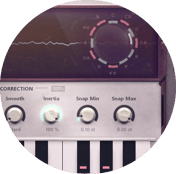
Graillon 3 does most of the work. In this screenshot, Pitch-Shift is at −12 semitones with Formants on, and Smooth is at Hard.


Graillon 3 by Auburn Sounds is a vocal tuner and voice changer. The free edition shifts pitch up to 12 semitones either way and shifts formants separately over the same range. It also has a compressor, a gate, a bitcrusher, a vocal preamp and a Low Cut filter. How to autotune in Audacity covers its tuning side.

Setekh by Full FX Media is a distortion and saturation plugin built around one large drive knob from 0 to 100. Linking input and output gain keeps the level steady as the drive goes up, so you judge the grit rather than the volume. MuseHub lists it for macOS only.

Hot Switch Jr by DAWJunkie is the Windows pick, and it runs on macOS too. It has three saturation stages, WARM, HOT and MELT, each with its own drive knob, used alone or stacked. For a voice, start with WARM on its own and treat its knob as the drive in the recipes above.

Echo1 by voidDSP is a stereo delay with two delay lines, feedback, and high-cut and low-cut filters on the repeats. Darker repeats stay behind the voice, so the words remain in front.
Male to female voice, and back
The clip’s pitch and speed dialog with Optimize for voice on is the built-in starting point. The pitch moves a few semitones and the resonances stay, which avoids the chipmunk, but the speaker still sounds like the same person.
Graillon 3 moves the resonances on purpose. A smaller vocal tract has higher resonances, so for a lighter voice raise Pitch-Shift, then raise Formant Shift by a smaller amount and listen. Lower both for a heavier voice.
Effects take a performance only part of the way. In the forum thread above, the singer had tried pitch, EQ and a formant shift without a convincing result, and two replies pointed to delivery, the inflections and articulation that differ between speakers. When the voice has to belong to someone else, an AI voice changer is the other option. Auribus on MuseHub converts a performance into the voice of a real singer. It is a subscription, with a free trial that needs no card and no commitment. It loads in Audacity 4 as a VST3 and, on a Mac, also as an Audio Unit. The best AI plugins compares it with the alternatives.
Common mistakes
- Processing the only copy. Effect-menu effects rewrite the audio. Duplicate first and keep the original muted underneath.
- Optimize for voice off on an ordinary pitch change. The resonances move with the pitch and the voice turns into a chipmunk or a slowed tape. Switch it off only for a creature.
- A noisy, roomy take. A comb filter rings on the room echo, and distortion lifts the hiss. Clean the take first.
- Everything at full strength. Each effect costs some consonants, and three at once leave no words. Turn each one down until the sentence is easy to follow.
- Expecting to hear the effect while you record. Input monitoring in Audacity 4 plays your voice back unprocessed; the track’s realtime effects apply on playback and export. The take itself is recorded dry, so you can still change the effects afterwards. To send the changed voice to another app, such as a call or a stream, use a voice-changer app that installs a virtual microphone.
Pro tips
- Blend the original back in. Unmute it at a low level under the processed copy. The clean voice carries the consonants and the copy carries the character.
- One dry take, many voices. Duplicate the take once per character, so one recording gives you a robot, a demon and a phone call in the same project.
FAQ
Next steps
Pitch and speed have their own guide, how to change speed, tempo and pitch in Audacity. How to use effects and plugins in Audacity covers the realtime panel and the Master section. For more grit and space, see the best distortion plugins, the best saturation plugins, the best delay plugins and the MuseHub plugin catalog.
Get Audacity, Graillon 3, Echo1 and Setekh or Hot Switch Jr in one place — download MuseHub free.