Audacity changes speed, tempo and pitch separately, and in Audacity 4 all three live on the clip. Drag the clock-marked handle at a clip’s edge to change its tempo while the pitch stays where it was. For exact values, open the clip’s pitch and speed dialog, type a speed in percent and shift the pitch in semitones and cents. The Change Tempo effect from Audacity 3 is not in Audacity 4 yet, so a BPM change is one division, the new BPM over the old one, typed into that dialog.
This guide separates the three jobs and covers each one in Audacity 4: the clock handles, the pitch and speed dialog, the BPM math, and how to reset or render a change. Two jobs follow that Audacity 4 has no single tool for yet. One is fixing a tape or record that ran at the wrong speed, the other is slowing a song down to practise. The Audacity 3 routes close the guide.
Tested on Audacity 4.0.1 on macOS Sequoia and Audacity 3.7.9 on Windows 11; the screenshots are from the 4.0.1 install and the Audacity 4 manual. Shortcuts are written for Windows; macOS uses Cmd where Windows uses Ctrl, and Option where Windows uses Alt.
Audacity and pitch tools on MuseHub


Speed, tempo and pitch are three jobs
- Speed changes how fast the audio plays and its pitch together, the way a tape deck or turntable at the wrong setting does. Play it at half speed and it lasts twice as long and sounds an octave lower.
- Tempo changes how long the audio lasts and keeps the pitch. A song slowed from 106 to 103 BPM stays in its key.
- Pitch changes the note and keeps the length. A song moved two semitones down still ends at the same second.
Speed is the simple one, because the waveform itself stays intact and only plays faster or slower. Changing tempo or pitch on its own means taking the sound apart and rebuilding it, which is why large changes start to sound processed. On the Audacity forum thread about pitch-shifting quality, an Audacity team member put it in physical terms. The only way to keep the waveform perfectly is to change the speed along with the pitch.
Voices add one more layer. A voice has resonances, called formants, set by the shape of the throat and mouth, and they stay in roughly the same place whatever note you sing. A plain pitch shift moves them with the note, which is the chipmunk sound going up and the slowed-tape sound going down. Audacity’s Optimize for voice option keeps them in place.
| Job | What changes | Audacity 4 | Audacity 3 (3.4 and later) |
|---|---|---|---|
| Tempo | Length; the pitch stays | Clock handle on the clip, or Speed % in the pitch and speed dialog | Alt-drag the clip edge, or Effect ▸ Pitch and Tempo ▸ Change Tempo |
| Pitch | The note; the length stays | Semitones and Cents in the pitch and speed dialog, or Effect ▸ Pitch and tempo ▸ Change pitch | Alt+↑ / Alt+↓ on the clip, the clip’s Pitch and Speed dialog, or Change Pitch |
| Speed | Length and pitch together | Track ⋯ menu ▸ Rate for a doubling or halving; otherwise speed and pitch together in the dialog, see the tape section below | Effect ▸ Pitch and Tempo ▸ Change Speed and Pitch |
What you need
- Audacity 4. It is free. Get it through MuseHub on Windows and macOS, or from audacityteam.org, which also has a Linux build. MuseHub does not need an account to install Audacity.
- Audacity 3 for two jobs. Changing speed and pitch together by any ratio, and slowing playback without touching the audio, are still Audacity 3 tools. MuseHub installs Audacity 3.7.9 as a separate app next to Audacity 4, with its own settings.
- A copy of the original file. Clip changes stay reversible until you render them or apply an effect, but a tape or a rehearsal recording you cannot capture again deserves a backup.
Change the tempo with the clock handles
- Select the clip by clicking its header, the bar along its top.
- Find the clock handle. With the clip selected, two handles appear at each edge, just below the header. The upper one, an arrow, trims the clip; the one below it, marked with a clock, stretches it.
- Drag the clock handle. Drag outward to make the clip longer and slower, inward to make it shorter and faster. The pitch stays where it was.
- Read the badge. Once the speed has changed, a badge with a clock and a percentage appears at the right end of the clip’s header. 100% is the original, so a slower clip reads below it. The badge rounds to whole percent; click it to open the pitch and speed dialog and type an exact value.
The Audacity 4 manual shows the handles and the badge on a clip whose speed was changed.

Stretching a clip does not push the clips after it along the track. If the slower clip runs into the next one, move the later clips first.
Set an exact speed or BPM
Dragging is fine for “a bit slower”. For a target tempo, type the number.
- Open the dialog. Right-click the clip, or click the ⋯ button at the right of its header, and choose Open pitch and speed dialog. The shortcut is Ctrl+Shift+P.
The same clip menu holds the two commands that undo or fix the change, Reset pitch and speed and Render pitch and speed. Both stay greyed out until the clip has a change to reset:

- Type the speed. The dialog is titled Pitch and speed, followed by the clip’s name. Clip speed takes a percentage from 1 to 1000 with up to three decimals, where 100% is the original. The value applies as soon as you press Enter or click elsewhere in the dialog, and Done closes it. There is no Cancel, so a wrong value is undone with Reset pitch and speed, or by typing 100 again.
- Work out a BPM change. Divide the new BPM by the old one. A song at 106 BPM slowed to 103 BPM needs 103 ÷ 106, about 97.17% speed; one at 90 BPM pushed to 100 BPM needs about 111.11%. The pitch stays where it was. This is the workaround a forum moderator gave for the missing Change Tempo effect.
Audacity 4 needs the old BPM from you. If you do not know it, tap along with a tap-tempo counter, or check the song’s sheet music.

Change only part of a song by splitting it into its own clip first, because the dialog and the handles act on whole clips. Put the playhead where the section starts and press Ctrl+I, do the same at its end, then change the speed of the middle clip.
Change the pitch
- In the dialog. Clip pitch has Semitones, where 12 is an octave, and Cents, a hundredth of a semitone. The length stays the same. To sing along two semitones lower, type −2.
- Optimize for voice. Tick it for speech and singing. It keeps the resonances that make a voice sound like a person, so a voice raised a few semitones does not turn into a chipmunk. Leave it off for instruments. Pushing a voice on purpose, into a robot, a demon or a telephone, is a different job, covered in how to make voice effects in Audacity.
- As an effect. Effect ▸ Pitch and tempo ▸ Change pitch shifts a selection without splitting the clip. Set the change as From pitch and To pitch, in Semitones and Cents, as a frequency or as a Percentage change, and tick Use high quality stretching (slow) for the cleaner result. It rewrites the audio and has no voice option.
Audacity 4.0.1 has no keyboard shortcut for a clip’s pitch; Audacity 3.7.9 has one, in the Audacity 3 section below.
The further a pitch moves, the more of the processing you hear, voice or not. A forum regular made the same point in that thread. Small changes hold up, and large ones sound unnatural.
When you want the shift to stay adjustable while the song plays, a realtime plugin does it on the track instead of in the clip.

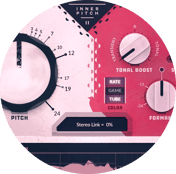
Inner Pitch 2 by Auburn Sounds is a pitch shifter on MuseHub; its free edition installs with a free MuseHub account, and it loads in Audacity 4.0.1 as a VST3 and as an Audio Unit. It sets the formants separately from the pitch, so you can keep a voice natural or push it on purpose. It can also spread a track across the stereo field with a small left-right pitch offset. The Robot and Tune modes belong to the paid Full Edition. Because it runs as a realtime effect, the audio in the clip stays untouched, and you can change the setting while a section loops until it sounds right. It is applied when you export. Add it from the track’s Effects button ▸ Add effect, where it sits under VST3 ▸ Auburn Sounds. Tuning single notes is a different job, covered in how to autotune in Audacity.
Reset or render the change
- Reset pitch and speed in the clip menu puts the clip back to its original speed and pitch.
- Render pitch and speed writes the change into the audio. Afterwards the clip plays the same, and the dialog shows no change.
- Effect-menu effects render first. Apply an effect such as Amplify to a clip with a changed speed or pitch and Audacity renders the change into the audio without asking. The badge disappears and Reset goes grey, so finish the speed and pitch before the other effects.
For a tempo change that rewrites the audio on a selection, the nearest thing to Change Tempo in Audacity 4 is Effect ▸ Pitch and tempo ▸ Sliding stretch. Type the same value into Initial tempo change and Final tempo change, for example −10, and the whole selection changes tempo by that much while the pitch stays. The two fields take whole percentages only, so a BPM change that needs decimals, such as the 97.17% above, belongs in the clip dialog. Change Tempo itself is one of the effects still missing from Audacity 4; an Audacity team member said on the forum that it will probably come back in 4.1.
Fix a tape or record that plays at the wrong speed
A cassette, reel or record digitised at the wrong speed is too fast or slow and in the wrong key at once. That is a speed job, and the clock handle cannot fix it because it keeps the pitch.
- In Audacity 3.7.9. Select the recording and open Effect ▸ Pitch and Tempo ▸ Change Speed and Pitch. Set Speed Multiplier to the ratio between the right speed and the one you played it at. A reel recorded at 1⅞ inches per second and digitised at 3¾ needs 0.5, which doubles the running time and drops the pitch an octave. For records, Standard Vinyl rpm has from and to menus, so a 33⅓ record played at 45 is set from 45 to 33⅓.
- In Audacity 4, for a doubling or halving. Open the track’s ⋯ menu and choose Rate, which shows the track’s sample rate, 44100 Hz for most recordings. Set it to 22050 Hz and the track plays at half speed and an octave lower, and the clip doubles in length, which is the reel fix above in one step. Rate changes the whole track, so put the tape on a track of its own.
- In Audacity 4, for any other ratio. Set the clip’s Speed and Semitones in the pitch and speed dialog to match each other. A 33⅓ record played at 45 needs 74.07% speed and a pitch drop of about 5.2 semitones, so Semitones −5 and Cents −20. That reaches the same length and key through two processing steps instead of one, so for a whole record the Audacity 3 effect is the cleaner choice.
- Expect the top end to suffer. A tape played at double speed and slowed down afterwards loses its highest frequencies; on the reel-to-reel thread, a helper expected nothing above about 10 kHz. If the deck can play the tape at the right speed, capture it again.
Setting up the capture itself is in how to record a turntable into Audacity.
Slow a song down to practise
Audacity 3’s Play-at-Speed toolbar played a project slower or faster without changing the audio. Audacity 4 does not have it; the Audacity 4.0 release notes list Play-at-speed among the features the team is working to bring back.
- In Audacity 4, open the clip’s pitch and speed dialog and set the speed to 75%, or whatever you can keep up with. The key stays the same, so you practise against the right notes. Select the bars you are learning and play them. When you are done, choose Reset pitch and speed in the clip menu.
- To take a slow version with you, leave the speed set and export it with File ▸ Export audio…. The file comes out longer to match. In our test a clip of about 2:35 at 75% exported as 3:26.
- In Audacity 3.7.9, the Play-at-Speed toolbar is on by default, under View ▸ Toolbars ▸ Play-at-Speed Toolbar if it is hidden. Drag its slider and press its play button. The export stays at normal speed whatever the slider says.
On Audacity 3
Clip stretching arrived in Audacity 3.4 and clip pitch in 3.5, so 3.7.9 works much like Audacity 4 with different labels.
- Stretch a clip. Hold Alt (Option on a Mac) and hover over the top third of the clip’s edge until the clock cursor appears, then drag.
- Type a speed or a pitch. Open the clip’s ⋯ menu, or right-click its header, and choose Pitch and Speed…, also on Ctrl+Shift+P. The dialog has the same Optimize for voice option. Render Pitch and Speed sits in the same menu and stays grey until the clip carries a change. There is no Reset item, so to go back type 100% and 0 semitones.
- Shift pitch from the keyboard. Alt+↑ and Alt+↓ move a selected clip’s pitch by one semitone per press.
- Effects that rewrite the audio. Effect ▸ Pitch and Tempo holds Change Tempo (with BPM and length fields, and Use high quality stretching (slow)), Change Speed and Pitch, Change Pitch, Paulstretch for extreme slowdowns, and Sliding Stretch. A Time Track (Tracks ▸ Add New ▸ Time Track) changes the speed of the whole project over time; Audacity 4 has no Time Tracks yet.
Audacity’s support page on speeding up and slowing down audio warns that Change Tempo and Paulstretch leave permanent artefacts, and recommends the clip methods for quality. Export with File ▸ Export Audio….
Common mistakes
- Changing the tempo of a tape that ran at the wrong speed. The length comes out right and the key stays wrong. Change the speed, which moves both.
- Dragging the clock handle to change the key. The handle keeps the pitch. Use Semitones in the dialog.
- Optimize for voice on the wrong source. On a voice, leave it off and the singer turns into a chipmunk or a slowed tape. On a guitar or a piano there are no vocal resonances for it to keep.
- Expecting the clip menu to act on a selection. It changes the whole clip. Split the section into its own clip first.
- Rendering again and again. Each render processes the audio once more, and Audacity’s support page warns that repeated renders of a stretch cost quality. Set the final values, then render once.
Example settings
| Job | Where | Setting |
|---|---|---|
| Slow a 106 BPM song to 103 BPM | Pitch and speed dialog | Speed 97.17%, Semitones 0 |
| Practise at three-quarter speed | Pitch and speed dialog | Speed 75%, Semitones 0, then Reset pitch and speed |
| Sing along two semitones lower | Pitch and speed dialog | Semitones −2, Speed 100%, Optimize for voice off for a band mix |
| Raise a spoken voice slightly | Pitch and speed dialog | Semitones 1, Optimize for voice on |
| Reel recorded at 1⅞ ips, digitised at 3¾ | Audacity 4: track ⋯ menu ▸ Rate | 44100 Hz → 22050 Hz |
| Reel recorded at 1⅞ ips, digitised at 3¾ | Audacity 3: Change Speed and Pitch | Speed Multiplier 0.5 |
| 33⅓ record digitised at 45 | Audacity 3: Change Speed and Pitch | Standard Vinyl rpm from 45 to 33⅓ |
Audio in the screenshots: the song in the Pitch and speed dialog is a royalty-free track from audio.com.
FAQ
Next steps
New to the editor? How to use Audacity covers clips, selections and the first edits. Cutting the song before you change it is in how to trim and cut audio in Audacity. For pitch correction rather than a fixed shift, see how to autotune in Audacity and the best autotune plugins, or browse the MuseHub plugin catalog.
Get Audacity 4, Audacity 3 and Inner Pitch 2 in one place — download MuseHub free.