How to remove breaths, mouth clicks and room echo in Audacity
Noise reduction removes steady hiss and hum, and leaves breaths, mouth clicks and room echo alone. In Audacity 4, lower each breath with the Clip gain line instead of deleting it. Catch mouth clicks with Effect ▸ Noise removal and repair ▸ Click removal, notch a stubborn one out in spectral view, and rebuild an isolated tick with Repair. Cut coughs and chair noise in the pauses. Room echo is the hardest. Audacity has no de-reverb effect, so the fix is a better take or a dialogue plugin.
This guide starts with a check of the raw take. It then covers breaths, mouth clicks, squeaks, coughs and room echo, each with the built-in route first and a plugin where one helps, and ends with the order to run the fixes in.
Tested on Audacity 4.0.1 on macOS Sequoia; the screenshots are from that install and the Audacity 4 manual. Shortcuts are written for Windows; macOS uses Cmd where Windows uses Ctrl.
Voice cleanup tools for Audacity

Which fix for which sound
| Sound | Built-in fix in Audacity 4 | Where | When a plugin helps |
|---|---|---|---|
| Breaths | Lower them with the Clip gain line | Clip gain button in the toolbar | De-Breather, a free Nyquist plugin, for a long recording |
| Mouth clicks across a take | Click removal | Effect ▸ Noise removal and repair | — |
| One stubborn click | A spectral notch, or Repair for an isolated tick of up to 128 samples | Track ⋯ menu ▸ Track visualization ▸ Spectrogram, then Effect ▸ Spectral tools; Effect ▸ Noise removal and repair | — |
| Cough or chair noise in a pause | Delete it, or lower it with Clip gain | Delete key; Clip gain in the toolbar | — |
| Squeak at one pitch | Spectral selection, then a spectral tool | Track ⋯ menu ▸ Track visualization ▸ Spectrogram, then Effect ▸ Spectral tools | — |
| Room echo | None; re-record, or tame the pauses with Noise gate | Effect ▸ Noise removal and repair | Extract:Dialogue 2 or De-Space |
What you need
- Audacity 4. It is free. Get it through MuseHub on Windows and macOS, or from audacityteam.org, which also has a Linux build.
- The raw take. Work on the recording as it came off the microphone, before any noise reduction or other processing.
- Headphones. Breaths, clicks and room echo are quiet details. Laptop speakers hide most of them.
Listen to the raw take first
Some of these sounds come from processing, not from the speaker. A user on the Audacity forum asked how to edit out squeaky sounds mid-speech. The helpers first asked for an unprocessed recording, because a noise gate or an enhancement plugin can add scraping of its own. In that thread, the raw take turned out to be free of the scraping. So open the original file, listen to the passage, and compare before you treat anything.
Echo can have a simple cause too. In a thread about horrible reverb on voice recordings, Audacity had switched back to the computer’s built-in microphone. A laptop microphone sits far from your mouth and hears the whole room. Check Audio setup ▸ Recording device before the next take. How to record audio in Audacity covers the device and the input level.
Lower breaths, don’t delete them
A breath cut out completely leaves the next word starting from nothing, and listeners hear the gap. A breath turned down keeps the rhythm of speech and stops drawing attention. Audacity 4 does this with Clip gain, a volume line you draw on the clip itself.
- Zoom in on the breath. Use the zoom buttons in the toolbar until the breath and the words around it fill the window.
- Turn on Clip gain. Click the Clip gain button in the toolbar. Every clip shows a volume line.
- Add four points. Click the line just before the breath, at its start, at its end and just after it.
- Drag the middle two well down. A shallow dip is hard to hear, so pull them until the breath is quiet but still there, then play the sentence. The outer points keep the words on either side at full level.

Clip gain changes the playback level without rewriting the recording. The points are applied when you export, and they stay where you put them after the project is saved and reopened, so you can drag one back up later.
For a long recording, try De-Breather. A forum member published De-Breather, a free pair of Nyquist plugins for spoken word. De-Breather Detect finds breaths by their sound rather than their volume and marks each one with a label, without changing the audio. De-Breather Reduce then lowers the detected breaths, by 20 dB at its default. Run Detect first, check the labels against what you hear, and only then run Reduce.
The author built it for Audacity 3.2 and later, and it runs in Audacity 4. Install each of the two files with Tools ▸ Nyquist plugin installer, which takes one file at a time, then open the plugin manager at the top of the Effect menu and click Rescan plugins. Detect lands in Analyze ▸ Nyquist ▸ Justin Heath, because it only adds labels; Reduce is in Effect ▸ Nyquist ▸ Justin Heath. Detect’s Min breath duration opens at 500 ms, so a short catch of breath gets no label. If a breath you can hear is skipped, lower that value and run Detect again.
Audiobook narrators have a hard limit on how quiet the pauses must be; how to master an audiobook in Audacity takes a chapter through that check.
Remove mouth clicks
Mouth clicks are the short ticks of the tongue and lips, and they get worse as the mouth dries. A glass of water during the session saves editing time later. For the clicks already in the take, Audacity 4 has two effects in Effect ▸ Noise removal and repair, and a third route in spectral view.
Click removal for the whole take. Select the passage, or everything with Ctrl+A, and open Click removal. It looks for short spikes that stand out from the audio around them and removes them.

The dialog opens with Threshold (lower is more sensitive) at 200 and Max spike width (higher is more sensitive) at 20. Preview at the defaults first. In our test on a recorded “tsk”, the defaults made it quieter rather than gone, while the hard consonants around it sounded the same, though the waveform showed them trimmed a little. If clicks get through, lower the threshold or raise the spike width a step at a time. The Click removal page of the Audacity manual warns that aggressive settings soften real transients, consonants among them. So listen to the words with a hard “t” or “k” after each change.
Repair for an isolated tick. Repair rebuilds a tiny stretch of audio from the samples on either side. Zoom in until you can see the tick as a single spike, select only the spike and choose Effect ▸ Noise removal and repair ▸ Repair. The limit is 128 samples, under three thousandths of a second at 44.1 kHz. Select more and Audacity refuses with this message: “The Repair effect is intended to be used on very short sections of damaged audio (up to 128 samples). Zoom in and select a tiny fraction of a second to repair.” Repair needs clean audio on at least one side of the selection and works best with clean audio on both. It suits a microphone knock or a digital tick. A mouth click is a burst of many small spikes, so repairing the tallest one makes it only a little quieter.
A click that survives both can be notched out in spectral view, the way a squeak is in the next section. In our test that did more against a “tsk” than either effect. Failing that, lower it with Clip gain, the same way as a breath, with the points close together.
Squeaks, coughs and chair noise
In a pause, cut it. A cough, a chair creak or a page turn between sentences can simply go. Select it and press Delete. The first time, Audacity 4 asks whether to leave a gap or close it. Leave gap keeps the timing, which matters when music or another voice runs underneath. Close gap (ripple) pulls the rest of the take back. How to trim and cut audio in Audacity covers both, with the shortcuts.
Over a word, lower it. A noise that lands on speech cannot be cut without cutting the word. Dip it with Clip gain and accept a little of it, or record the sentence again.
A squeak with one pitch can be notched out. Spectral view draws the track as frequency against time, so a squeak shows as a bright streak at one height. Open the track’s ⋯ menu and choose Track visualization ▸ Spectrogram. The Modern workspace, the default, also has a Toggle spectral view button in the toolbar; the Classic and Music workspaces hide it, and the gear at the end of the toolbar ▸ Customize toolbar adds it. Drag a box around the streak. That is a spectral selection, a range of time and frequency together, with handles to adjust it. Then choose Effect ▸ Spectral tools ▸ Delete selection center frequency, which notches out the middle of that frequency range, and the centre of the box visibly dims. The same submenu has Delete selection, Amplify selection and Amplify selection center frequency. In the forum thread above, this kind of notch removed a mouth squeak cleanly. The same thread showed its limit. A scrape that covers most of the spectrum has no single pitch to notch.
What helps against room echo
Room echo is your own voice bouncing off walls and arriving a fraction of a second late. Noise reduction cannot touch it, because the echo is the voice itself. Audacity has no built-in de-reverb effect, as a regular helper on the forum confirmed in a thread on removing room reverberation. Removing echo afterwards means asking software to separate your voice from a copy of itself.
Record the next take drier. It is the most reliable fix. Move closer to the microphone, record at a lower level and raise it in Audacity afterwards. Hang blankets or a duvet over the hard surfaces nearest to you.
Tame the pauses with Noise gate. Effect ▸ Noise removal and repair ▸ Noise gate turns the audio down whenever it falls below a threshold. Set gently, it shortens the echo tail you hear in the pauses. It leaves the echo under the words, and a gate set too hard makes the room switch on and off with every sentence. It opens with Gate threshold at −40 dB and Level reduction at −24 dB, a gentle start. Audacity noise reduction explains the difference between a gate and noise reduction.
A forum member also wrote a free Nyquist plugin called Dereverb, a gate that works band by band. It processes mono tracks only, and testers in its thread struggled to find settings that helped.
Use a dialogue plugin for the rest. Two plugins on MuseHub reduce room echo on a recorded voice. They run in the realtime effects panel. Press E, click Add effect and choose the plugin, which sits in the list under its format and maker.

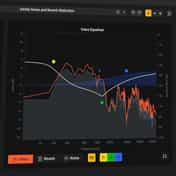
Extract:Dialogue 2 by Acon Digital uses AI to split dialogue into three channels, for the voice, the noise and the reverb. Each has its own fader, mute and solo, so you pull the reverb fader down and hear exactly what you are removing. It is made for spoken dialogue, not for sung vocals over music.

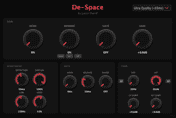
De-Space by Justin Sheriff combines room reflection reduction with noise removal, a gate for the pauses and high-pass and low-pass filters. It is aimed at voices recorded in home studios and untreated rooms.
Expect less echo, not a voice that sounds as if it was recorded in a booth.
For a voice over music or background sound, the online Voice Extractor on MuseHub keeps the voice and drops the rest. It is free, runs in the browser and takes MP3, WAV, FLAC or M4A files of up to 1 GB or 20 minutes. It is not a de-reverb tool, and its own page warns that heavy reverb can leave artifacts in the extracted voice.
In what order
Each fix changes what the next one hears, so run them in this order.
- Repair clicks and squeaks, and cut coughs and chair noise. Compression later raises what is left, clicks included.
- Reduce steady noise. Built-in Noise reduction, or the free Viator Voice Denoiser in the realtime panel.
- Shape the tone with EQ, such as a high-pass filter around 80 Hz for rumble.
- Level the voice with compression. The free Viator Voice Leveler does it with one knob.
- Listen for breaths again. Compression raises the quiet parts, breaths included, so lower any that now stand out.
How to edit a podcast in Audacity puts these steps in a full episode workflow, from import to MP3.
Common mistakes
- Deleting every breath. The speech sounds breathless and rushed. Lower breaths and keep the pauses.
- Fixing the processed file. A squeak or scrape that is not in the raw take was added by processing. Go back to the original and change the processing.
- Click removal at extreme settings. Hard consonants soften along with the clicks. Start at the defaults and move one control at a time.
- Repair on a mouth click. Repair rebuilds one spike; a mouth click is many. Use Click removal or a spectral notch for those.
- Pushing noise reduction against echo. It cannot tell the echo from the voice, so raising it only makes the voice watery and hollow.
FAQ
Next steps
How to use effects and plugins in Audacity covers the realtime panel and installing plugins through MuseHub. For the rest of the voice chain, see the best podcasting plugins, the best vocal plugins and the MuseHub plugin catalog.
Get Audacity and the voice cleanup plugins in one place — download MuseHub free.