What is 8D audio? How it works and how to make it
8D audio is a stereo song reworked so that, on headphones, the sound seems to travel around your head. This guide explains how the effect works and how it differs from binaural recording, HRTF rendering and Dolby Atmos. Then it shows four ways to make it yourself.
You’ll learn which three parts make the effect and why your brain reads a left-to-right sweep as a circle. You’ll also get the rotation and reverb settings that keep an 8D track listenable for a whole song.
Panners and reverbs for 8D mixes

What is 8D audio?
8D audio is an ordinary stereo song processed so that, on headphones, the sound seems to circle your head. An auto-pan moves it slowly from ear to ear, and reverb adds a room around it. The “8D” is a label, and the effect has no eight dimensions.
There is no 8D standard, file format or player. An 8D track is a normal stereo file, so it plays on any phone, laptop or streaming app. What makes it 8D is the processing someone applied before uploading it, and every channel and converter does that processing its own way.
Why it’s called 8D
The name grew out of YouTube uploads in the second half of the 2010s, when channels posted circling versions of popular songs under titles that promised an “8D experience” on headphones. The effect moves sound along one line between your ears and suggests depth with reverb, so there are no extra dimensions to count.
The idea underneath is much older. In 1881 Clément Ader’s théâtrophone let visitors to the Paris electricity exhibition hear the Opera through two earpieces, one per ear, from transmitters spread across the stage. A separate signal for each ear is still the basis of every headphone effect, 8D included.
How 8D audio works
Three processes make the effect. The first two are essential, the third is a refinement.
The auto-pan moves the sound between your ears
Panning sets how much of a sound goes to the left channel and how much to the right. An auto-pan moves that balance by itself, driven by an LFO (low-frequency oscillator), a wave too slow to hear that rises and falls at a set rate. As the level climbs in one ear, it drops in the other, and the sound travels across your head.
In 8D music the rate is very slow. The 8D Audio tool, for example, offers one full circle every 2 to 20 seconds and starts at 8. In LFO terms that is 0.5 Hz down to 0.05 Hz, because the rate in hertz is 1 divided by the seconds per circle.
The reverb gives the circle a room
A dry sound panned between headphones tends to sit inside your head. Reverb adds the reflections a real room would return, and with them the sound appears further away, outside your head. Audio engineers call this externalization. It turns a side-to-side swing into something that feels like a circle around you.
Reverb also fills the moment when the sound passes the middle, where a plain pan can feel thin. If reverb is new to you, the explainer on reverb covers how its tail builds and decays.
EQ is the optional third part
Some 8D mixes add EQ (equalization) that moves with the pan. Your outer ears soften high frequencies arriving from behind you, so a small treble cut timed to one half of the circle can make that half sound further back. Keep it to a few decibels, or the song sounds dull every time it comes around.
Why your brain hears a circle
Your brain places a sound with three kinds of cue. The level difference between your ears and the arrival-time difference, which is under a millisecond, tell it how far left or right the sound is. The filtering of your outer ears tells it whether the sound is in front, behind or above.
Panning changes only the level cue. Level and timing alone cannot tell front from back, because a sound ahead of you and one behind you at the same angle reach your ears the same way. So the brain fills in a path. Some listeners hear the sound pass behind them, others hear a wide swing, and nothing in the signal decides which.
The diagram shows the idea from above: the sound swings from one ear to the other on a slow cycle, and the brain hears that swing as a circle.
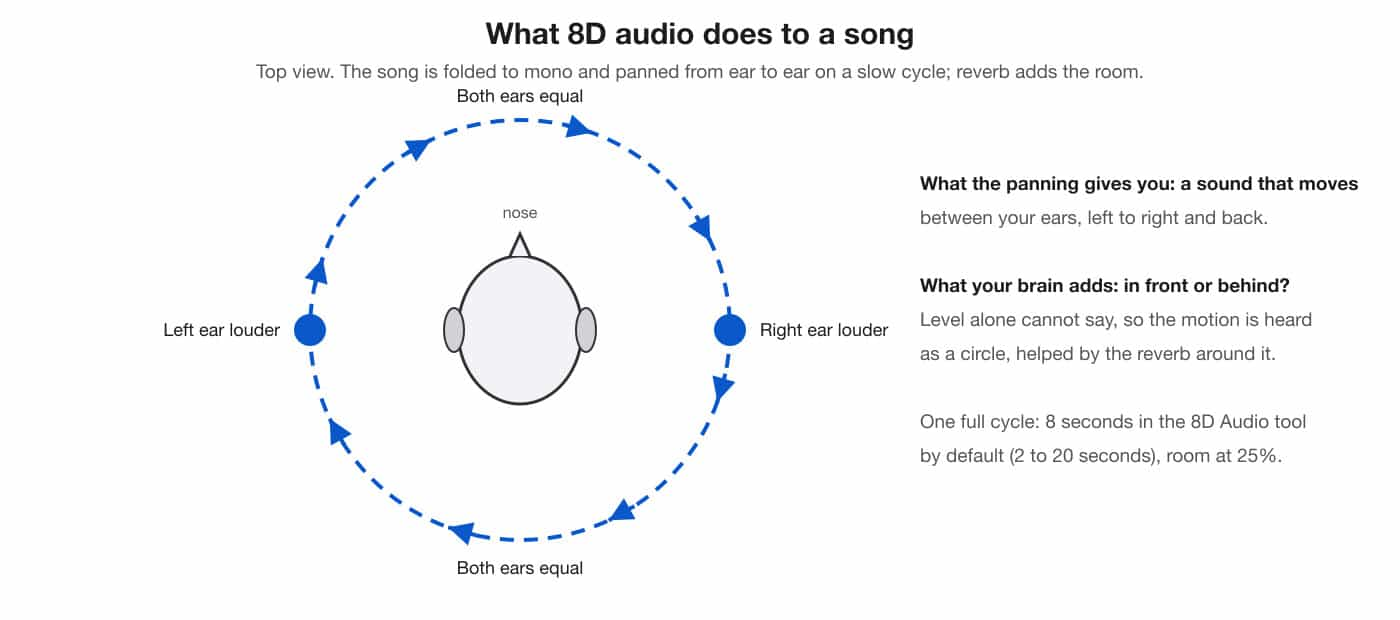
The effect is clearest on parts that sit in the center of the original mix, such as the lead vocal, the kick drum and the bass. They start in the middle, so you hear them leave it.
8D audio vs binaural audio
Some people call 8D binaural, though the two share little beyond the headphones. Binaural audio carries the real cues of a head and ears; 8D carries only a moving level difference plus reverb.
Binaural recording
A binaural recording is made with two microphones placed in the ears of a dummy head, a model of a human head and ears, or in a person’s own ears. Each microphone captures what that ear would hear, including the filtering of the head and outer ear. Played back on headphones, the recording puts sounds in front, behind and above you as they were at the recording spot. You cannot add that to a finished stereo song, because it has to be recorded that way.
HRTF rendering
An HRTF (head-related transfer function) describes how an ear receives a sound from one point in space. Software applies a pair of these filters, one per ear, to place a sound in a chosen direction, and the result works like a binaural recording on headphones. HRTFs vary from person to person because ears differ, so a generic set places sounds less precisely for some listeners than for others.
Dolby Atmos and Apple Spatial Audio
Dolby Atmos stores sounds as objects with position data, and a renderer works out how to play them on the speakers or headphones in use. On headphones that rendering is binaural. Apple’s Spatial Audio surrounds an AirPods listener with sound from supported content, Atmos music included, and can add head tracking, which keeps the sound anchored to the device as you turn your head. Atmos needs a mix made in the format, so a stereo song cannot simply be switched into it.
Binaural beats are something else
Binaural beats are two steady tones of slightly different pitch, one in each ear, which the brain hears as a pulse at the difference. A 200 Hz tone in one ear and 210 Hz in the other give a 10 Hz beat. 8D audio contains no binaural beats, so research on them says nothing about 8D.
The four at a glance
| Kind of audio | How it’s made | Where it can place sound | From any stereo song? |
|---|---|---|---|
| 8D | Auto-pan between left and right, plus reverb | Left to right; the circle is suggested | Yes |
| Binaural recording | Microphones in the ears of a dummy head or a person | Front, back, above, at a distance | No, recorded that way |
| HRTF rendering | Per-ear filters for a chosen direction | Any direction on headphones | Only from separate parts or stems |
| Dolby Atmos / Spatial Audio | Sounds stored as objects with positions, rendered for the playback system | Around and above the listener | No, mixed in the format |
How to make 8D audio
Whichever route you take, you will judge the result on headphones, so check them first.
Check left and right before you start
Play the Left and Right chimes on the free Speaker Test and make sure each comes only from its own side. If both sound centered, mono audio is probably switched on in your phone’s or computer’s accessibility settings, and no 8D effect will come through until you turn it off.
In a DAW: pan automation and a reverb send
Every DAW (digital audio workstation) can automate the pan control, so you need no extra plugin.
- Draw the movement. Draw pan automation as a smooth wave from full left to full right and back, or use your DAW’s auto-pan. In Ableton Live 12.2 it is Auto Pan-Tremolo, set to Panning mode.
- Lock it to the bars. A circle that lasts a whole number of bars returns to the same ear at each phrase. One bar of 4/4 lasts 240 divided by the tempo in BPM (beats per minute), in seconds; the BPM Finder gives you the tempo.
- Keep the low end still. If you have the multitrack, move the vocal and instruments and leave the kick and bass in the center. From a finished song, the Stem Splitter separates vocals, drums, bass and other parts.
- Send everything that moves to one reverb. One shared room makes the parts sound as if they circle in the same space.
In Audacity 4: Tremolo on each channel, then Reverb
Audacity 4 has no auto-pan effect. Its Distortion and modulation group holds Tremolo and Vocoder, and the built-in realtime effects are Bass and Treble, Compressor, Limiter and Reverb. Tremolo, which raises and lowers the volume at a set rate, does the same job once it runs in opposite directions on the two channels.
- Split the song. Import it, open the track’s ⋯ menu and choose Split stereo to L/R mono. Audacity pans the upper track full left and the lower one full right for you.
- Modulate the left channel. Select the left track and open Effect ▸ Distortion and modulation ▸ Tremolo. Set Waveform type to Sine, Starting phase to 0, Wet level to 100 and Frequency to 0.125 Hz, one circle every eight seconds.
- Modulate the right channel the opposite way. Select the right track and apply Tremolo with the same settings and Starting phase 180. Now one side is loud while the other is quiet.
- Add the room on the master. Open the effects panel with E, and in its Master section choose Add effect ▸ Audacity ▸ Reverb. Start with Wet gain well below its default and raise it until the vocal starts to blur, then back off a little.
- Export in stereo. Use File ▸ Export audio with Channels set to Stereo.
Here is the Tremolo window for the right channel: Sine, Starting phase 180, Wet level 100 and Frequency 0.125 Hz.
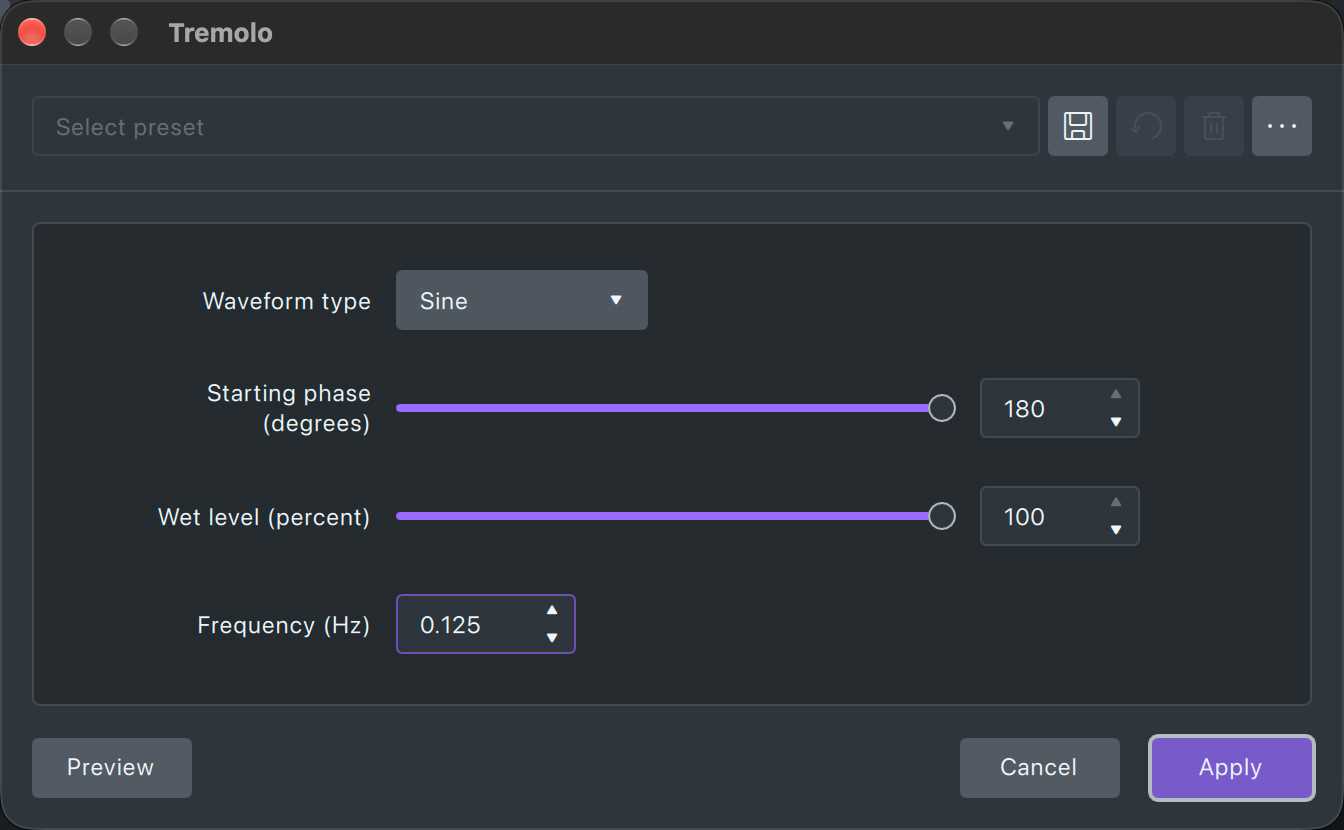
Tremolo changes the audio itself, so try a different rate with Undo and apply again. For a realtime auto-pan you can adjust during playback, add a VST3 or AU plugin; how to use effects and plugins in Audacity shows how to install and load one.
In one click: the 8D Audio tool
The free 8D Audio tool does the auto-pan and the reverb in your browser. Drop a song, choose one circle every 2 to 20 seconds and a room amount from 0 to 100%, preview it on headphones and download a stereo WAV. The file is processed on your device and never uploaded. It moves the whole song, so use the DAW route when the bass and kick should stay still.
Here is what the tool’s default settings do to a short piano piece: first the piece as it was rendered, then in 8D, one circle every 8 seconds with the room at 25%, both at the same loudness. Put headphones on and listen for the notes drifting from ear to ear, and for the room that opens up around them.
Dry, then 8D
With a binaural panner: front, back and height
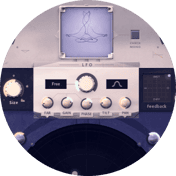
A plain auto-pan stops at left and right. A binaural or HRTF panner adds the front, back and height cues the pan lacks, and these plugins on MuseHub cover that range.

Panagement 2 from Auburn Sounds is a spatialization plugin built around binaural panning and an algorithmic reverb. Its panner places a track by direction and distance, and the reverb adds early and late reflections that make the distance believable. Automate its position in your DAW and you have the two 8D ingredients with real binaural cues, for free.

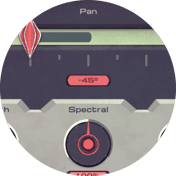
Psypan 2, also free from Auburn Sounds, offers 17 panning and spatial modes in one plugin. They include binaural panners, classic pan laws, Haas delay, doubling, widening and Mid/Side processing. It suits placing the parts that stay put around the moving ones.

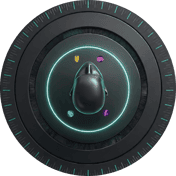
3D Panner from almudio places a sound 360 degrees around you, above and below, with HRTF binaural rendering that works on ordinary headphones. Eight built-in LFOs move the sound for you, or you draw your own path. It can also split a sound into up to eight frequency bands and place each one separately, so the low end stays put while the top moves.

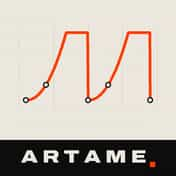
ARTAME from Ajanss Records drives volume, a low-pass filter and stereo position from one curve you draw, synced to your DAW’s bar position. Cycles run from four bars down to a sixteenth note. With the filter following the position, one half of each circle can sound darker, which is the treble-cut trick from the EQ section.

PINGPAN from Portway DSP is an auto-panner whose movement comes from a physics simulation, paired with a ping-pong delay and a sweepable filter. It suits livelier, bouncing movement more than a slow circle; the best delay plugins cover ping-pong delay itself.

Halo Reverb from Vitric Audio is a good shared room for the moving parts. Its DUCK control turns the reverb down while the dry signal plays and lets it swell in the gaps, which keeps a circling vocal intelligible. For more rooms to choose from, see the best reverb plugins.
Settings that keep 8D listenable
| Setting | Start here | Why |
|---|---|---|
| Rotation | 8 seconds per circle (0.125 Hz) | A steady drift; 2 seconds can feel dizzying over a whole song |
| Rotation on a tempo | 2 or 4 bars | The sound returns to the same ear at each phrase |
| Room | Low to moderate, about a quarter wet | Enough to pull the sound out of your head while the words stay clear |
| Room on dense songs | Lower again | Each reverb tail runs into the next beat and blurs it |
| Low end | Kick and bass in the center | Moving the bass makes the whole mix lurch |
| EQ behind you | A treble cut of 2–3 dB at most | Bigger cuts make the song dull every time it comes around |
FAQ
Next steps
Take a song you know well and run it through the 8D Audio tool at 8 seconds per circle, then at 16. Listening to the same song at two speeds is the quickest way to find the rotation you like before you build it by hand in a DAW. To keep every plugin you install in one place, download MuseHub free or browse the plugin catalog.