How to record audio in Audacity
To record audio in Audacity 4, plug in your microphone and pick it under Audio setup ▸ Recording device. Set the level so your voice peaks between −18 and −6 dB, select a mono track and press Record (R). The take lands on the selected track; Record on new track leaves the existing tracks alone, which is how you layer a second part over the first.
This guide covers the microphone setups and what each needs, Audio setup, the level and the per-track meter, hearing yourself without a delay, overdubbing, lead-in recording for retakes, and saving versus exporting. It ends with the mistakes behind most “Audacity is not recording” searches and the voice plugins that clean up the result.
Tested on Audacity 4.0.1 (build 4.0.1.262721409) on macOS Sequoia 15.7.4; the screenshots are from that install. Shortcuts are written for Windows; macOS uses Cmd where Windows uses Ctrl.
Audacity and voice tools to start with



What you need
- Audacity 4 — free, for Windows, macOS and Linux, from the Apps section in MuseHub or from audacityteam.org.
- A microphone. The table covers the four ways one connects. A laptop’s built-in mic works for a test and picks up the fan and the room along with your voice.
- Headphones. They stop playback leaking back into the mic when you overdub, and they let you hear yourself without feedback.
- A quiet, soft room. Curtains, a rug and a bed absorb the reflections that make a take sound like a bathroom. Turn off fans first; that hum is hard to remove later.
| Microphone | Connects via | Check before recording | Best for |
|---|---|---|---|
| USB microphone | A USB port, directly rather than through a hub | It appears by name under Recording device; its own gain knob, if it has one | Podcasts, voiceover, streaming; the simplest route |
| XLR microphone and audio interface | XLR cable into the interface, interface into USB | Phantom power (48V) on for a condenser mic; the interface’s input gain and direct-monitor switch | Singing, instruments, two mics at once |
| 3.5 mm headset or lavalier | The mic-in or combined headset socket, never the headphone-out | Many laptops have one combined socket; a mic-only plug may need an adapter | Interviews on the move, quick notes |
| Built-in laptop mic | Nothing to plug in | Listed as the internal microphone under Recording device | A test take, or when nothing else is at hand |
A Bluetooth headset can record too; the one catch, on Windows, is under common mistakes.
Step 1: Choose the input in Audio setup
Audio setup sits in the top bar; the manual’s Project toolbar page lists everything in it. Four of its items matter here.
- Host — the audio system Audacity talks to. Leave the default unless a later step sends you here.
- Playback device — your headphones. If you hear nothing on playback later, check this first.
- Recording device — your microphone or interface, by name. The list can include webcams and virtual devices; pick the one you plugged in.
- Recording channels — 1 (Mono) Recording channel for one microphone. A stereo choice appears only for a device with two inputs; a built-in mic offers mono alone.
If the microphone is missing, you plugged it in after Audacity started. Rescan audio devices, in the same menu, finds it without a restart. The manual’s Connect your microphone page walks the same steps with pictures.
One microphone produces one channel, so record a voice in mono; stereo would give you two identical copies and a file twice the size. With two microphones on an interface, give each its own mono track so you can level and pan them separately.

Step 2: Set the level on the meter
Click the microphone button in the toolbar to open the Microphone level flyout. The meter follows your mic as soon as it opens, because Show mic metering when not recording is ticked by default, so you can set the level before you record anything.
Speak, or play, at the volume you will use for real, including the loudest line. Adjust the slider so the peaks sit between −18 and −6 dB, the range the manual gives. The support page narrows that to −18 to −12 dB for normal speech, which leaves room for a laugh. The scale is dBFS, decibels below full scale, and 0 is the ceiling. Anything that touches it is clipped, and clipping is distortion that no effect repairs afterwards. A take that peaks too low is the lesser problem; Amplify lifts it later, though it lifts the room noise along with the voice.
Two things about that slider. It is tied to your computer’s main mic volume, so it moves the mic level in every other application too. And on an interface or a USB mic with its own gain knob, set the knob first and use the slider for fine adjustment; a knob near maximum adds hiss.

Once a track exists, the same reading appears on the narrow meter down the right edge of the track’s header. It shows peak and RMS in dBFS, holds the highest peak, and switches to its clipped color if the signal hits 0 dB, staying that way until you click it.
Step 3: Record on a track
Click Add track above the track list and add a mono track, then click the track’s header to select it. Recording goes onto the selected track; skip this and pressing Record creates a track for you, which is fine once and confusing with several. Record a few seconds of silence, then speak. Record or R starts, Pause holds the take without ending it, and Stop or Space ends it. Space again plays it back.

The Record menu has three commands, and the choice between the first two decides where your audio lands.
- Record on current track records from the playhead into the selected track. Its shortcut is R, though the menu does not show it.
- Record on new track creates a new, empty track and records into it from the playhead, leaving the existing tracks untouched. This is the overdub command; Step 5 uses it.
- Lead-in Recording (Shift+D) plays the stretch before the playhead, then drops into record. Step 6 uses it.

Listen back and look at the waveform. A solid block filling the track means the peaks are clipped; lower the level and take it again. A nearly flat line means it was too quiet. Clear movement with peaks well short of the top is a healthy take. View ▸ Show clipping in waveform marks clipped samples in red. The manual’s Make your first recording page runs the same check.
Record a ten-second test and play it back before anything you care about. A wrong device or a clipped level cannot be fixed afterwards.
Step 4: Hear yourself without a delay
Put headphones on first, keep the volume low, then tick Turn on input monitoring (hear yourself while recording) in the Microphone level flyout. Audacity plays your microphone back through the playback device, so you hear yourself as you speak. Do this through speakers and the mic picks up its own output; the result is a feedback howl that grows until you cut it.
Software monitoring has a delay, because the sound travels into the computer, through Audacity and back out; most people hear it as an echo of their own voice. Two fixes. On an audio interface, use its direct monitor switch and leave Audacity’s monitoring off; the interface routes the mic to the headphones in hardware, with no delay. Without an interface, lower Buffer length (100 ms by default) under Preferences ▸ Audio settings ▸ Buffer and latency to shorten the delay; set it too low and a slower computer may drop out mid-take. If neither works, turn monitoring off and trust the meter; plenty of podcasters record that way.
Step 5: Overdub a second track
Overdubbing means recording a new part while the earlier ones play. Put the playhead where the new part should start, then choose Record on new track. Audacity always plays the existing tracks while it records, with no setting to turn that off, so wear headphones; through speakers, the first take leaks into the second.
Two different delays meet here. The one you hear while recording is monitoring latency, and Step 4 fixes it. The one you see afterwards is recording latency, where the new take sits late against the old ones. Audacity shifts every overdub back by the Latency compensation value under Preferences ▸ Audio settings ▸ Buffer and latency, which has an Automatic checkbox. If overdubs still land late, measure the value for your device and host.
- Make a click. Generate ▸ Rhythm track, two bars with a short ping sound, on its own track.
- Record it back. Hold the microphone to a speaker and record the click with Record on new track.
- Measure the gap. Zoom in and read how many milliseconds the recorded clicks sit after the generated ones.
- Enter it as a negative number. Untick Automatic; a 184 ms gap becomes −184 in Latency compensation. Repeat the test whenever you change the device or the host.
The Audacity 3 support page on latency compensation walks the same test with pictures. If a part still lands late, drag its clip with snapping on until it lines up. To keep time for a song, record against a Rhythm track click, then mute it before you export. M (mute) and S (solo) on each track header let you hear any combination while you check the layers.

Step 6: Fix a line with lead-in recording
Flubbed one sentence in a good take? Place the playhead at the start of the bad sentence and press Shift+D. Lead-in Recording plays the two seconds before the playhead, then records from it, so you hear your own run-up and come in on cue. The new take replaces the audio on the same track from the playhead for as long as you record, as a new clip; the rest of the original take carries on after it. Change the run-up under Preferences ▸ Playback/Recording ▸ Recording lead-in time ▸ Lead-in time before recording starts (2 seconds by default). On Audacity 3 the same command was Punch and Roll. Narrators: how to master an audiobook in Audacity takes the finished chapter to ACX’s specs.

Step 7: Save the project, then export
Saving and exporting are different things, and lost takes usually come from treating them as one. File ▸ Save (Ctrl+S) keeps the project as an .aup4 file with every track, clip and realtime effect still editable. The first save asks whether the project lives on your computer or in the cloud on audio.com. Save after each take.
File ▸ Export audio… (Ctrl+Shift+E) renders a flat file that other apps can play; if Audacity first asks where to save, click Export to computer. Type picks Full project audio, Selected audio or Audio in loop region, or writes one file per track or per labeled region. A mixed export plays every track as playback would and leaves the project as it was. For a voice, export mono. WAV is the archive copy, FLAC halves it without losing anything, MP3 plays everywhere, and Opus sounds better than MP3 at the same size. M4A appears in the format list only once FFmpeg is installed. The support page on saving and exporting projects lists the formats.

Keep the project on an internal drive. Audacity needs fast, uninterrupted access while recording, and a USB stick or network share is where a session drops out. If a project already won’t open, recover the corrupted project step by step.
Common mistakes
- Only the left channel has sound. A mono microphone recorded onto a stereo track. Set Recording channels to mono; for the take you already have, choose Split stereo to center mono from the track’s ⋯ menu and delete the silent track.
- A flat line, nothing recorded. Usually the wrong Recording device, such as a webcam, a virtual device, or the built-in mic instead of the USB one. Otherwise the level slider is at zero, phantom power is off on a condenser mic, or a mute switch is on. On Windows, Settings ▸ Privacy & security ▸ Microphone must allow desktop apps; on macOS, System Settings ▸ Privacy & Security ▸ Microphone must have Audacity 4 switched on (Audacity 3 has a switch of its own), and Audacity needs a restart after the change.
- A Bluetooth headset records silence on Windows. On a Mac, AirPods record at the default 44100 Hz with nothing to change. On Windows, a Bluetooth microphone may run at 16 kHz or lower; try setting Default sample rate under Preferences ▸ Audio settings to 16000 Hz, then record on a new track. For anything you publish, a wired mic sounds better.
- Clipped peaks. The waveform is a block and the take sounds crunchy. There is no repair; lower the level by 6 dB and record again. Clip fix (Effect ▸ Noise removal and repair) can soften a stray peak; a whole squashed take is beyond it.
- A feedback howl. Input monitoring on, with speakers. Headphones on, volume down, then monitoring.
- The mic is missing from the list. Plugged in after launch. Rescan audio devices.
Clean up the voice, built in first
A clean capture needs little. For a steady hiss or hum, the built-in Noise Reduction effect takes the silence you recorded at the start as its profile. Our noise-reduction guide covers the sliders. For a quiet take, Amplify or Normalize; making audio louder in Audacity compares them. Both are one-off edits from the Effect menu.
Plugins go on the track as realtime effects, added with E and adjusted while the take plays, which suits anyone who cleans voice every week. Install them from the Plugins section in MuseHub; how to use effects in Audacity covers validation and the panel. Three are built for spoken voice.

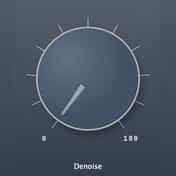
Free and tuned for speech; VST3, plus Audio Unit on macOS. Audacity lists it as voice-denoiser under Viator DSP. The Denoise knob, 0 to 100, sets the amount; turn it up until the room tone drops away and stop before the voice thins. It handles noise that changes mid-sentence, which the profile-based built-in effect cannot.


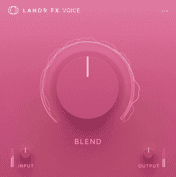
A preset-driven chain for vocals and spoken word, as VST3 and Audio Unit. Pick the preset for the situation and set its intensity with a single control; the chain covers the tone and level moves a podcaster would otherwise build by hand.

Cleans a spoken take in one pass. It has presets for common microphones and three controls, and it removes background noise, tames room reverb and evens out the tone so the result sounds like a treated booth. Load the VST3; on macOS, Audacity 4.0.1 marks its Audio Unit as Broken. The pick when a weekly show needs the same clean voice every episode.
MuseHub runs on Windows and macOS and needs a free account for plugins. The best Audacity plugins lists more, with a format column for each, and the plugin section has the rest.
Example settings
| Job | Track | Sample rate | Peak level | Monitoring |
|---|---|---|---|---|
| Podcast or voiceover, one USB mic | Mono | 48000 Hz (44100 Hz if the show is audio only) | −18 to −12 dB | Off, or the mic’s own headphone jack |
| Singing over a backing track | Mono, a new track per take | Match the backing track | −12 to −6 dB on the loudest phrase | Interface direct monitor, Audacity monitoring off |
| Two-person interview, one interface | Two mono tracks | 48000 Hz | −18 to −12 dB each | Interface direct monitor |
| Acoustic guitar, stereo pair | Stereo | 48000 Hz | −12 to −6 dB | Interface direct monitor |
| Bluetooth headset, last resort | Mono, new track | 44100 Hz (16000 Hz if Windows records silence) | −18 to −12 dB | Off |
Set Default sample rate under Preferences ▸ Audio settings before the first take, because it applies only to tracks created after you change it. A track that already exists keeps its own rate, which you change from its ⋯ menu ▸ Rate.
FAQ
If Audacity shows an error code instead of recording, fixing Audacity when it is not recording matches each one to its fix.
Next steps
To capture what is playing on the computer rather than a microphone, recording computer audio in Audacity covers WASAPI loopback and the macOS route. For a record player, recording a turntable into Audacity settles the preamp question. With the takes in, editing a podcast in Audacity runs the whole chain to an exported episode. How to make your voice sound better covers the EQ, compression and de-essing moves for the voice itself. Get Audacity and the voice plugins in one place — download MuseHub free.