How to merge tracks in Audacity
To merge tracks in Audacity 4, first decide what kind of merge you need. To put two recordings one after the other, drag the second clip onto the first track and press Cmd+J to join them. To combine tracks that play at the same time, export the project as one file and import it back, because Audacity 4.0.2 has no command that mixes tracks down inside a project.
This guide covers joining files end to end, combining overlapping tracks into one, turning two mono tracks into one stereo track, and what replaced Mix and Render from Audacity 3.
Tested on Audacity 4.0.2 on macOS. Shortcuts are written for Mac; Windows uses Ctrl where Mac uses Cmd.
Audacity on MuseHub


Which merge do you need?
“Merge” covers three different jobs in Audacity, and each has its own command.
| You want | What happens | How |
|---|---|---|
| One recording after another, as one clip | The clips sit end to end on one track and become a single clip | Edit ▸ Clip ▸ Join selected clips (Cmd+J) |
| Several tracks that play together, as one track | The tracks are mixed into one file, which you import back | File ▸ Export audio… with Type set to Full project audio |
| Two mono tracks as one stereo track | The two tracks become one track with two channels | Make stereo track in the upper track’s ⋯ menu |
Join two recordings end to end
Joining is for files that belong one after the other, such as two takes of a voice-over or a podcast intro and the episode.
- Import both files with File ▸ Import… (Cmd+Shift+I), or drag them in. Each lands on its own track, named after the file.
- Drag the second clip by its header onto the first track, so it starts right where the first one ends. Drag by the name bar along the top of the clip; dragging inside the waveform selects audio instead.
- Select both clips. Click the first clip’s header, then Shift+click the second. Both turn a lighter shade with a dark outline.
Here are the two clips side by side on one track, both selected and ready to join.
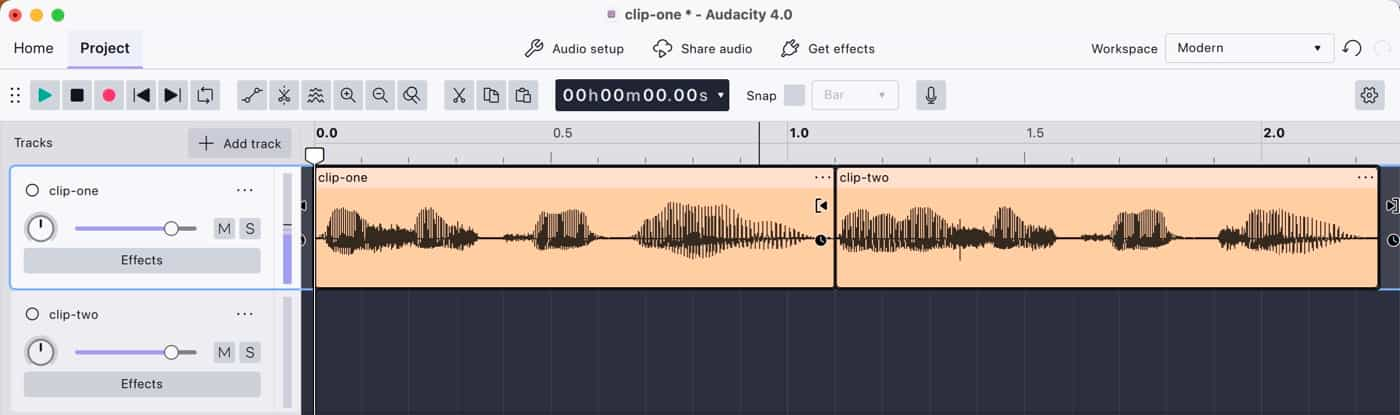
- Press Cmd+J, or choose Edit ▸ Clip ▸ Join selected clips. The two become one clip, which keeps the first clip’s name. The clips must sit next to each other on the same track.
- Remove the empty track the second file came from. Open that track’s ⋯ menu and choose Delete. Audacity deletes it straight away, without asking, so check you picked the empty one; Cmd+Z brings it back.
After the join, the track holds one clip from start to finish.
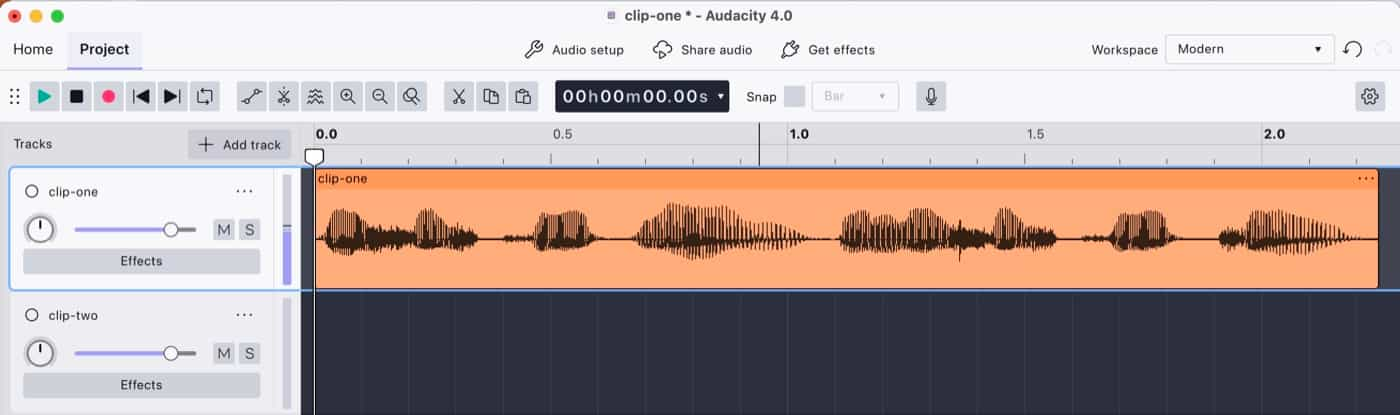
The join is one step in the Edit menu’s history (Undo ‘Join’), so Cmd+Z separates the clips again if the result is not what you wanted. To smooth a hard edge where the two recordings meet, see how to fade in and out in Audacity.
Combine overlapping tracks into one
Tracks that play at the same time, such as a voice and a music bed, are mixed into one when you export. Audacity 4.0.2 has no command in its menus that does this inside the project, so the export is the mixdown. To get that mix back as a single track:
- Save the project with File ▸ Save, so nothing is lost.
- Balance the tracks first. The export mixes the tracks as you hear them, so set each track’s volume slider and pan knob in the track header before you export. If the mix is too loud and distorts, lower the volume of the tracks.
- Choose File ▸ Export audio… (Cmd+Shift+E). If Audacity first asks how you would like to export, click Export to computer. Share to audio.com uploads the file and makes a link instead.
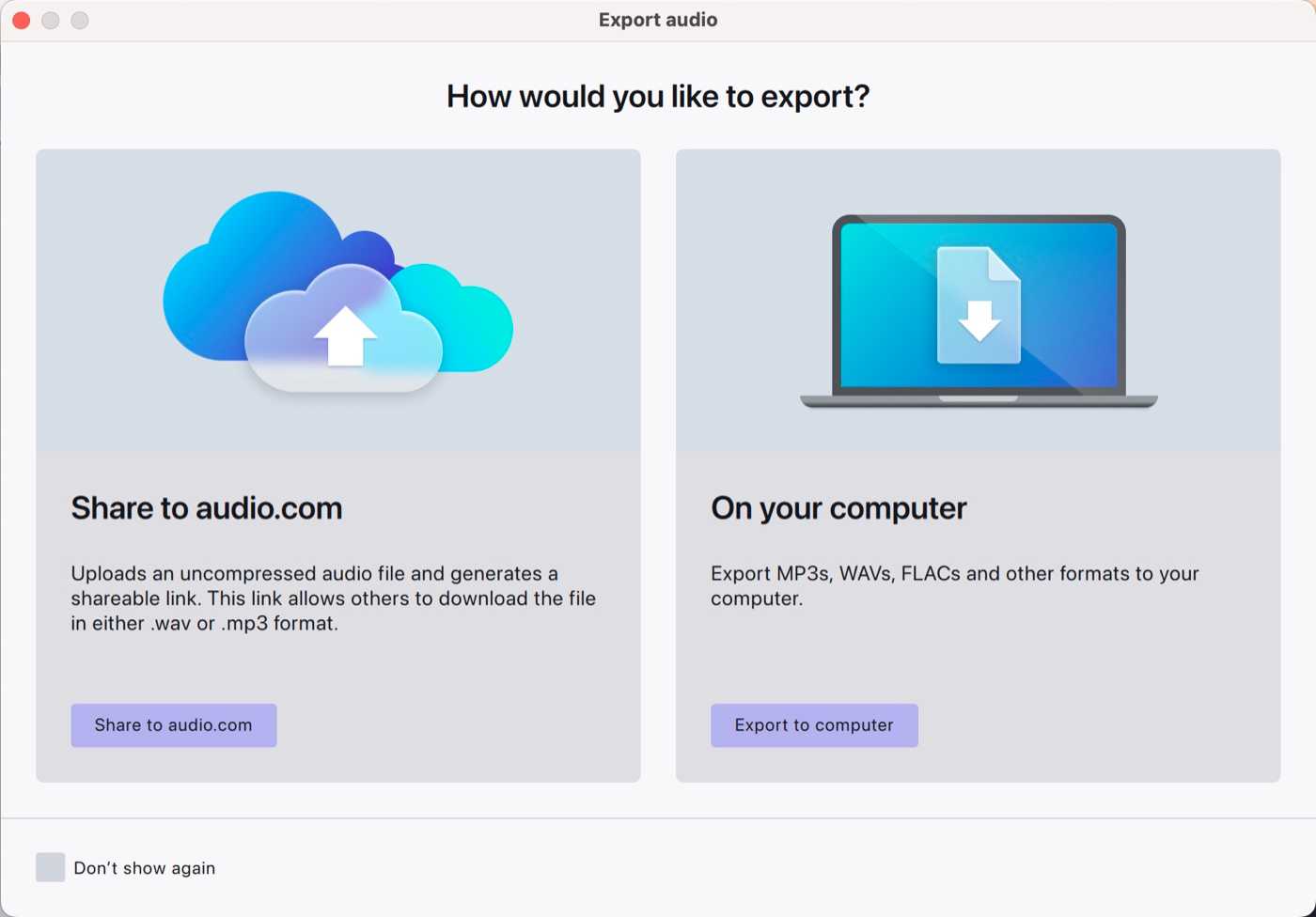
- Set Type to Full project audio. It is the default, and it mixes every track into one file. Format is WAV (Microsoft) by default, which keeps full quality for the import. Under Channels, choose Stereo if your tracks are panned or stereo, so the mix keeps its left and right.
- Name the file, pick a folder and click Export.
- Import the WAV with File ▸ Import…. It lands on a new track holding the whole mix.
- Mute or delete the original tracks if you no longer need them. The M button in a track header mutes it; Delete in its ⋯ menu removes it.
The Export audio dialog with Type set to Full project audio looks like this.
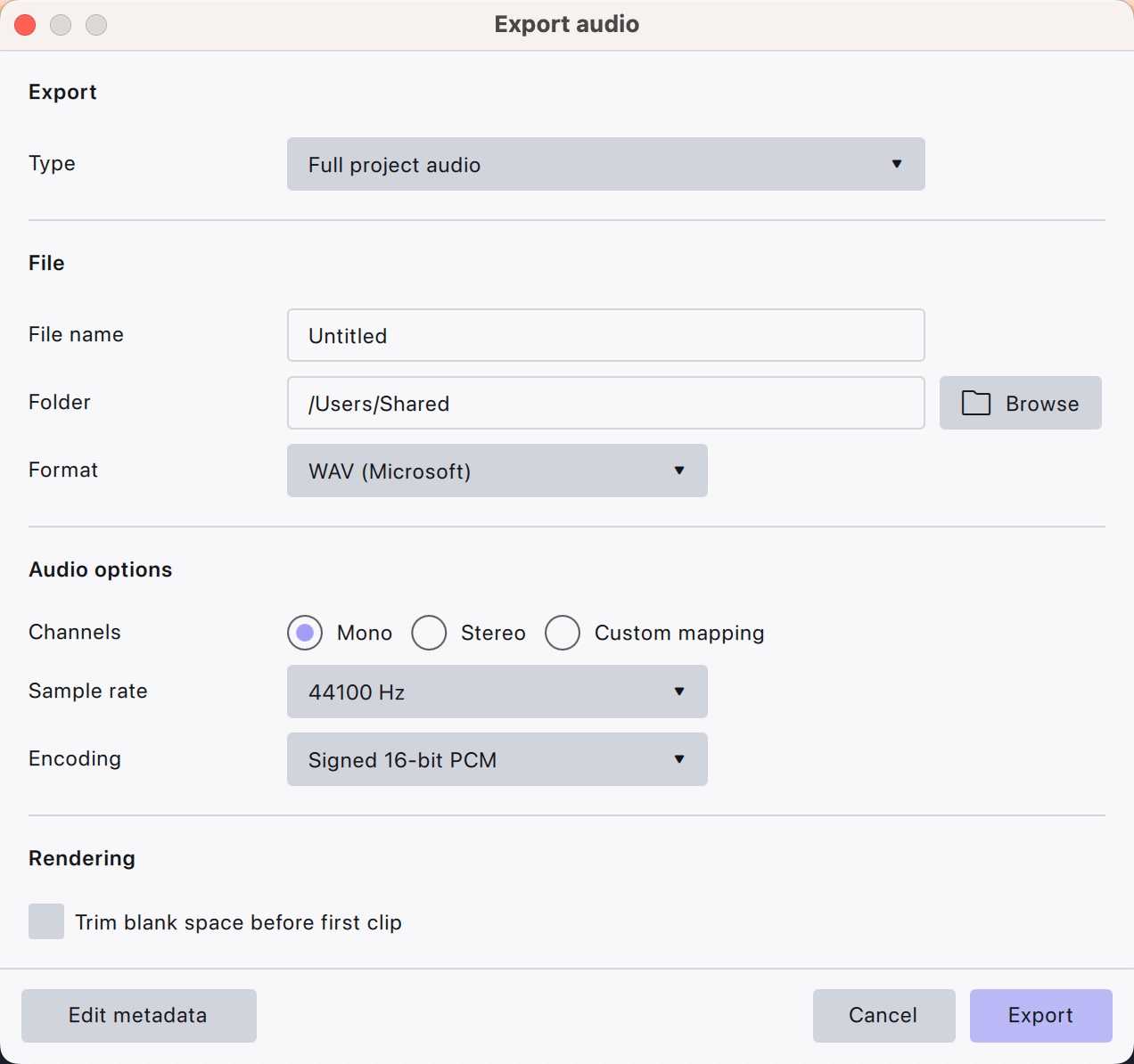
The other Type options do different jobs. Selected audio exports only the current selection, and Audio in loop region exports what falls inside the loop. The two “as separate audio files” options write one file per track or per labeled region, the opposite of a merge.
Turn two mono tracks into one stereo track
Two mono tracks, such as the left and right mics of a stereo pair, can become one stereo track with Make stereo track.
- Place the two tracks one above the other. The command pairs a track with the track directly below it. To change the order, use Move track in the track’s ⋯ menu.
- Open the ⋯ menu of the upper track and choose Make stereo track. On the bottom track the command is greyed out, because there is no track below it to pair with.
Here is the track ⋯ menu, with Delete near the top and Make stereo track lower down.
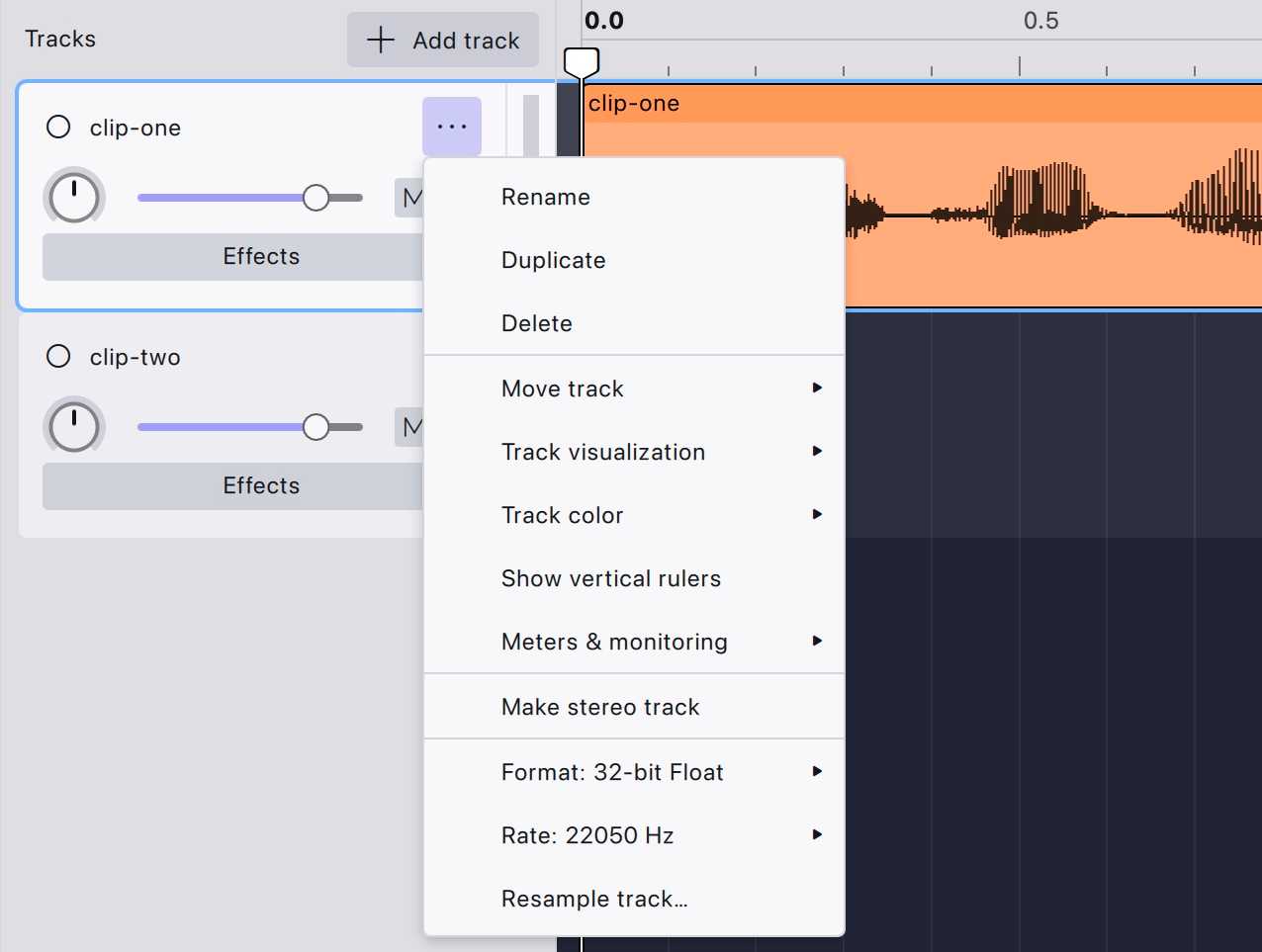
The result is still two channels, now held by one track. To end up with a single file, export as in the section above.
Where is Mix and Render in Audacity 4?
On Audacity 3, Tracks ▸ Mix ▸ Mix and Render mixed the selected tracks into one new track in a single step. Audacity 4.0.2 does not have it. Its Tracks menu holds New mono track, New stereo track, New label track and Duplicate, and neither the track menu nor the clip menu has a mix command. The export-and-import route above gives the same result, and you keep the original tracks until you delete them.
Common mistakes
- Joining clips on different tracks. Join selected clips only works on neighbouring clips on the same track. Drag them together first.
- Dragging inside the waveform. That makes a selection instead of moving the clip. Drag the clip by its header.
- Exporting only the selection. For a full mixdown, set Type to Full project audio, not Selected audio.
- Deleting the wrong track. Delete in the ⋯ menu acts at once. Press Cmd+Z if it took the wrong one.
- Deleting the originals too soon. Keep the saved project until you have checked the merged track.
FAQ
Next steps
For cutting, splitting and moving clips, see how to trim and cut audio in Audacity. For a full episode built from several tracks, follow how to edit a podcast in Audacity.
Get Audacity free in one place — download MuseHub free.