How to restore old recordings in Audacity: vinyl crackle, tape hiss and hum
Old records and tapes carry three kinds of damage: clicks and crackle from dust and scratches, hiss from tape and preamps, and hum from mains electricity. Each needs its own fix, in a fixed order: clicks first, then hum, then hiss. Audacity 4 has built-in effects for clicks and hiss. For hum it only has filters that cut the music along with the buzz. This guide fixes each kind of damage with the built-in route first, then with the Ajanss Records plugin that removes the damage and leaves the music alone.
This guide starts with telling the three apart by ear and on screen. It then fixes clicks, hum and hiss in that order, each with Audacity’s own effect first and a plugin second, and ends with the full chain and what none of it can fix.
Tested on Audacity 4.0.1 on macOS Sequoia. Shortcuts are written for Windows; macOS uses Cmd where Windows uses Ctrl.
Restore old recordings in Audacity

Which fix for which damage
| Damage | What it sounds like | Built-in fix in Audacity 4 | Plugin |
|---|---|---|---|
| Clicks and crackle | Ticks, pops, a frying-pan sizzle | Click removal; Repair for a single click | ARCLICK |
| Hum | A low, steady buzz at 50 or 60 Hz | Notch or high-pass filter, which also cut the music | ARHUM |
| Hiss | A steady high “shhh” | Noise reduction, from a noise profile | ARNOISE |
| Wow and flutter | The pitch wobbles | None | None |
What you need
- Audacity 4, free through MuseHub or from audacityteam.org.
- The transfer. How to record a turntable into Audacity covers getting the record in.
- A copy to work on. Keep the raw file untouched, so you can start again.
- Headphones. Crackle and hiss hide on laptop speakers.
Find the damage first
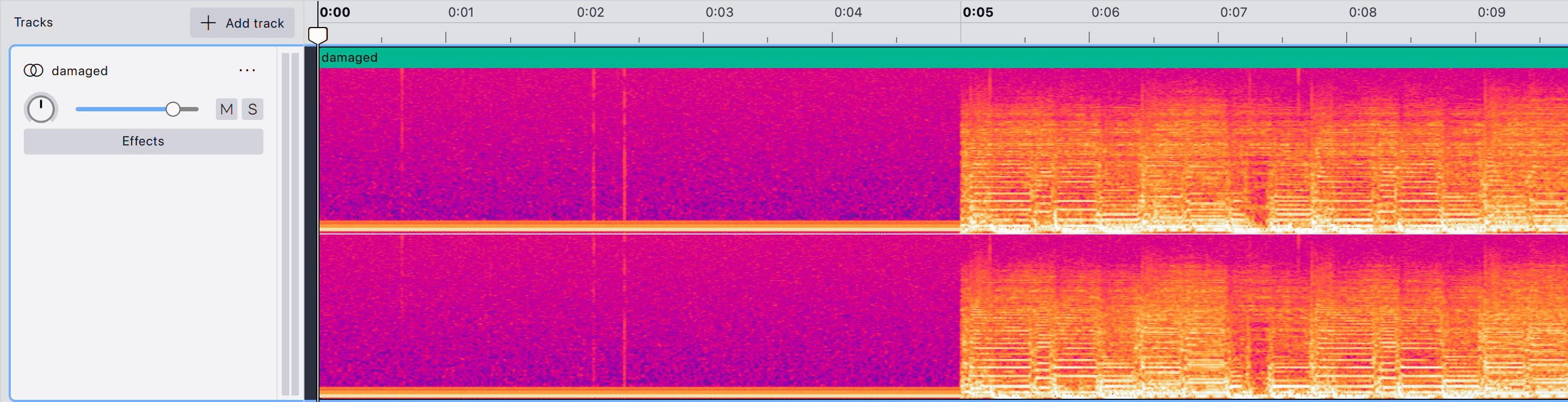
Listen to a quiet stretch: the lead-in groove before the music, the tape leader, or the gap between songs. Then look. Click Toggle spectral view in the toolbar, and Audacity draws the track as pitch against time.
- Hum shows as thin horizontal lines low down: one at 50 or 60 Hz and more at each multiple above it.
- Clicks show as thin vertical lines, one per click.
- Hiss shows as an even haze across the upper half.
Work in this order: clicks, then hum, then hiss. Every later step makes clicks harder to find, so they go first. Hum goes before hiss because noise reduction learns from a sample of the background, and hum left in that sample teaches it to carve the hum frequencies out of the whole recording.
Remove clicks and crackle
Built-in: Click removal. Select the recording, or everything with Ctrl+A, and choose Effect ▸ Noise removal and repair ▸ Click removal. It opens with Threshold at 200 and Max spike width at 20. Preview first. Lower the threshold to catch more, a step at a time, and listen to drums and hard consonants after each change, since aggressive settings soften real transients. For one stubborn click, zoom in until it is a single spike, select only the spike and apply Effect ▸ Noise removal and repair ▸ Repair, which works on up to 128 samples.
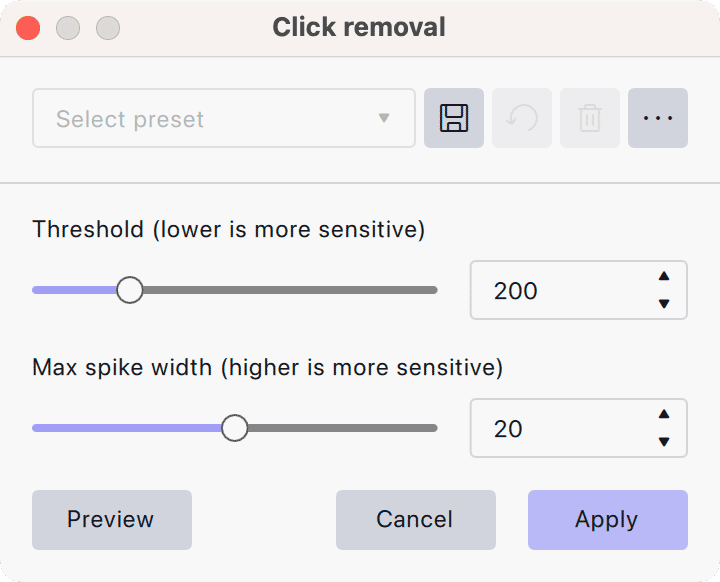
Click removal handles clear, separate clicks. Dense crackle is harder: settings strong enough to catch it start to eat the attack of every snare.

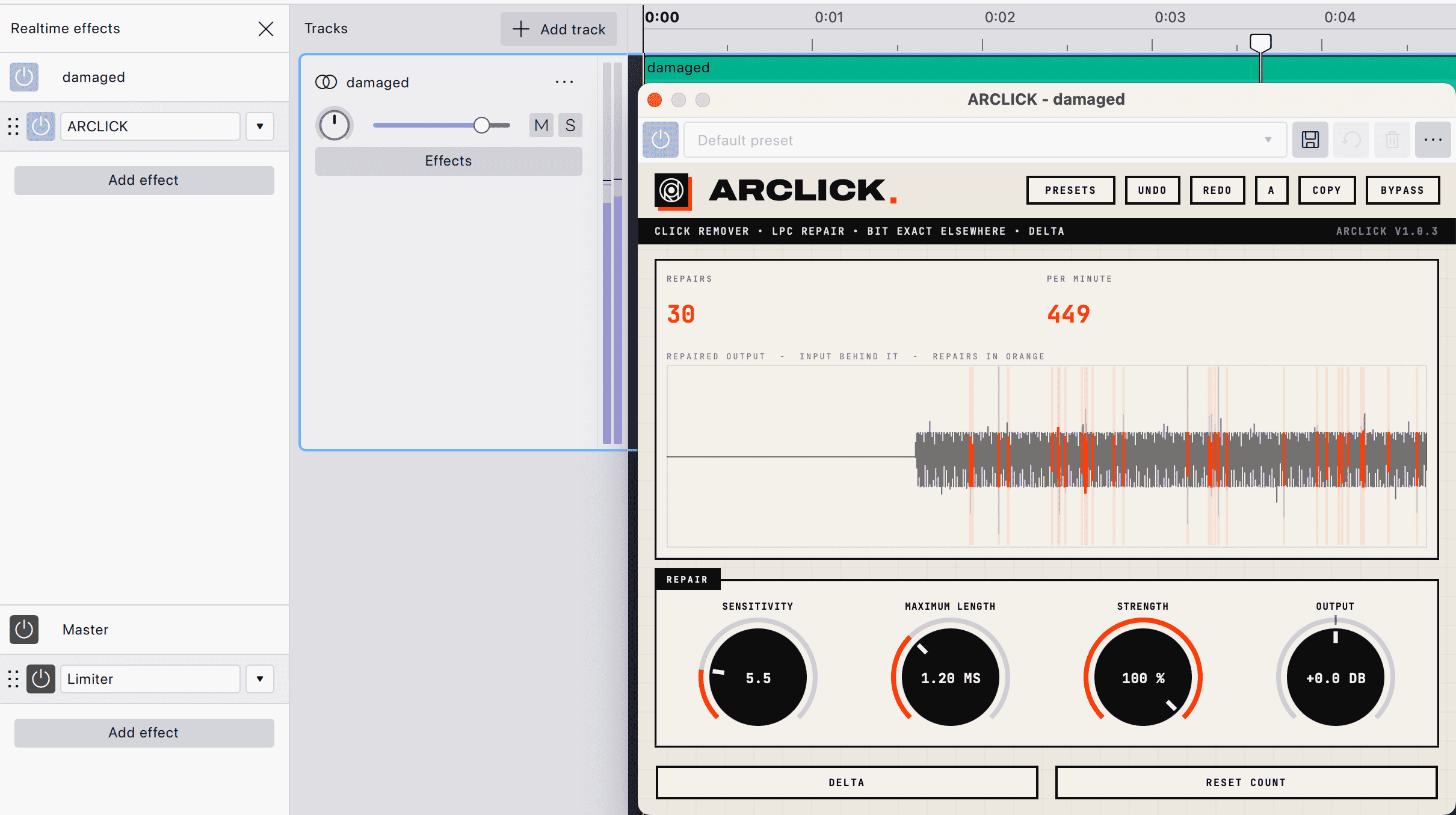
ARCLICK rebuilds the damaged sound instead of cutting it. It keeps a running model of what the recording has been doing and predicts the next sample. When a sample lands far outside the prediction, ARCLICK marks the burst and rebuilds it from the audio on both sides, running the model forwards from before the damage and backwards from after it. Everything else is left as it was.
Telling a click from a drum hit is the hard part, so ARCLICK runs three tests before it touches anything: the burst has to end within the MAXIMUM LENGTH setting, the audio has to settle just after it, and the sample has to fall far enough outside the prediction. In the developer’s tests, a recording with forty clicks had all forty found, the median click was reduced by 17.9 dB, and only 0.26% of the samples changed. On audio with no clicks, the output was identical to the input.
- Add it first in the stack. Press E, click Add effect and choose
VST3 ▸ Ajanss Records ▸ ARCLICK. - Start from a preset. There are fifteen, including Vinyl Clicks for separate pops and Vinyl Crackle for a worn record. Drums (Keep the Attack) protects percussion.
- Set SENSITIVITY, MAXIMUM LENGTH and STRENGTH by ear. The preset is a starting point; adjust while the worst passage plays.
- Watch the repair count. REPAIRS and PER MINUTE show on screen and start from zero each time playback starts. A count that climbs on a clean passage means the settings are too eager.
- Listen to what it removes. The DELTA button plays only the removed sound. You should hear clicks, not music.
- Two passes for heavy crackle. One buyer on MuseHub runs two instances with different sensitivity and strength. A gentle first pass for loud pops, a second for the fine crackle, works well on worn vinyl.
Remove hum
Hum comes from mains electricity leaking into the signal: 50 Hz in most of the world, 60 Hz in North America. It is never one note. Harmonics at 100, 150 and 200 Hz (or 120, 180 and 240) are what turn a low hum into a buzz.
Built-in: a filter. Audacity has no dedicated hum remover. Effect ▸ EQ and filters ▸ Notch filter at 50 or 60 Hz removes the fundamental, but it also removes any music at that pitch and leaves the harmonics behind. A high-pass filter, in the same group, cuts everything below a frequency, bass included.

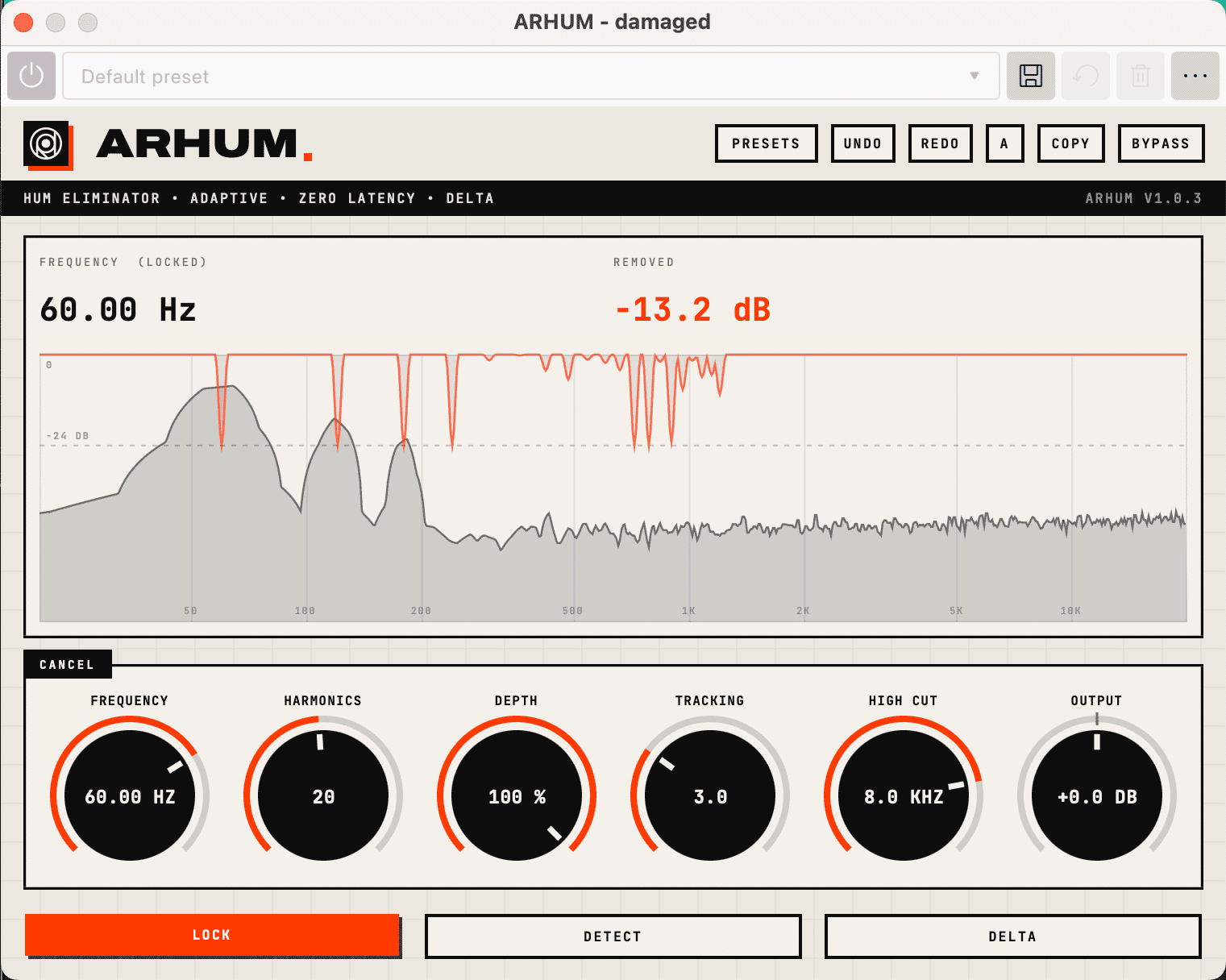
ARHUM subtracts the hum and leaves the music. Instead of cutting a band, it tracks the level and phase of each hum harmonic, builds a copy of the hum and subtracts it. Music at the same pitch stays. In the developer’s tests, with a 100 Hz musical note right on a hum harmonic, ARHUM reduced the hum by 42.6 dB while the note lost 1.5 dB.
- Add it after ARCLICK. It sits under
VST3 ▸ Ajanss Recordstoo. - Press DETECT on a quiet stretch. It measures the real mains frequency instead of assuming exactly 50 or 60 Hz, and shows it under FREQUENCY.
- Switch on LOCK for tape. Tape speed drifts, so the recorded hum drifts with it. LOCK follows the drift, and TRACKING sets how quickly. With mains drifting from 50.0 to 50.4 Hz, LOCK gave 37.5 dB of reduction in testing, against 0.1 dB without tracking.
- Raise HARMONICS until the buzz goes. ARHUM handles from 1 to 40. Stop when more harmonics stop changing what you hear. DEPTH sets how much is removed, and HIGH CUT the highest frequency it works on.
- Check with DELTA. It plays only what is being removed; you should hear the hum and nothing else.
ARHUM adds no latency, so it is safe while you monitor a live transfer too.
Reduce hiss
Built-in: Noise reduction. Select a stretch of hiss with no music, choose Effect ▸ Noise removal and repair ▸ Noise reduction and click Get noise profile. Then select the whole recording, open the effect again and apply it. It starts at 6 dB of reduction, sensitivity 6 and frequency smoothing 6. It rewrites the audio, so you can’t tweak it while you listen, and too much turns the music watery. Audacity noise reduction explains each slider.

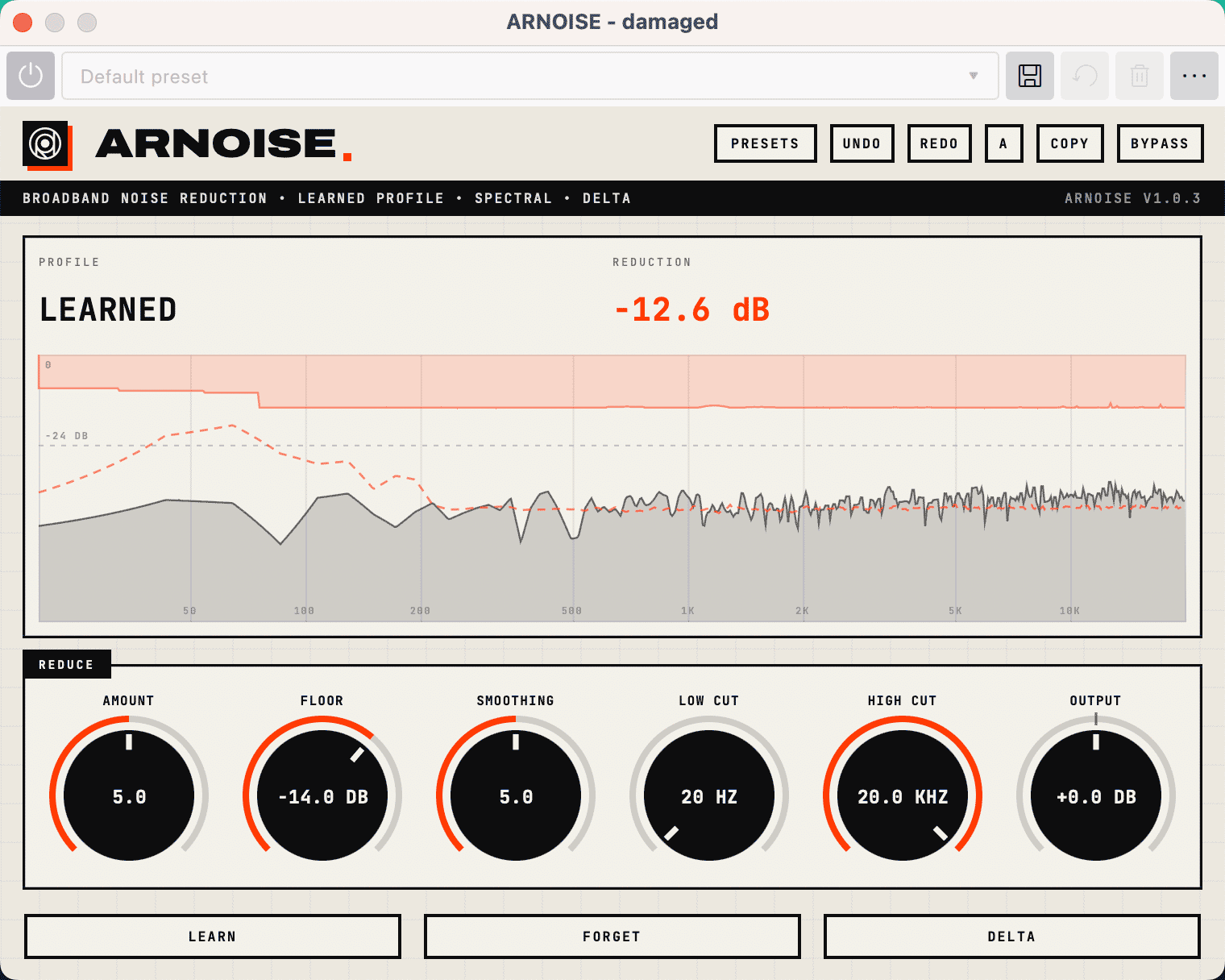
ARNOISE does the same job live. It learns the hiss from a sample, then compares the incoming audio against it band by band and removes only what matches. Because it runs in the realtime panel, you can change the amount while the record plays. In the developer’s tests, steady noise dropped by 9.2 dB at the default setting and 12.8 dB at a stronger one, while a tone 20 dB above the noise lost only 0.2 dB.
- Add it last, after ARHUM. That way it learns from hiss alone, with the clicks and hum already gone.
- Play a second of hiss and press LEARN. Use the lead-in groove or the tape leader. The display reads Profile: LEARNED; FORGET clears it.
- Set AMOUNT, then use FLOOR and SMOOTHING to keep the background natural instead of a ringing, watery texture.
- Leave a little hiss. Some noise sounds natural on vinyl and tape. Removing all of it takes the air off cymbals and voices.
The learned profile is saved with the project, so it is still there when you reopen it. ARNOISE delays the audio by 2048 samples, and Audacity compensates on export: the exported file lines up with the original.
Put the chain together
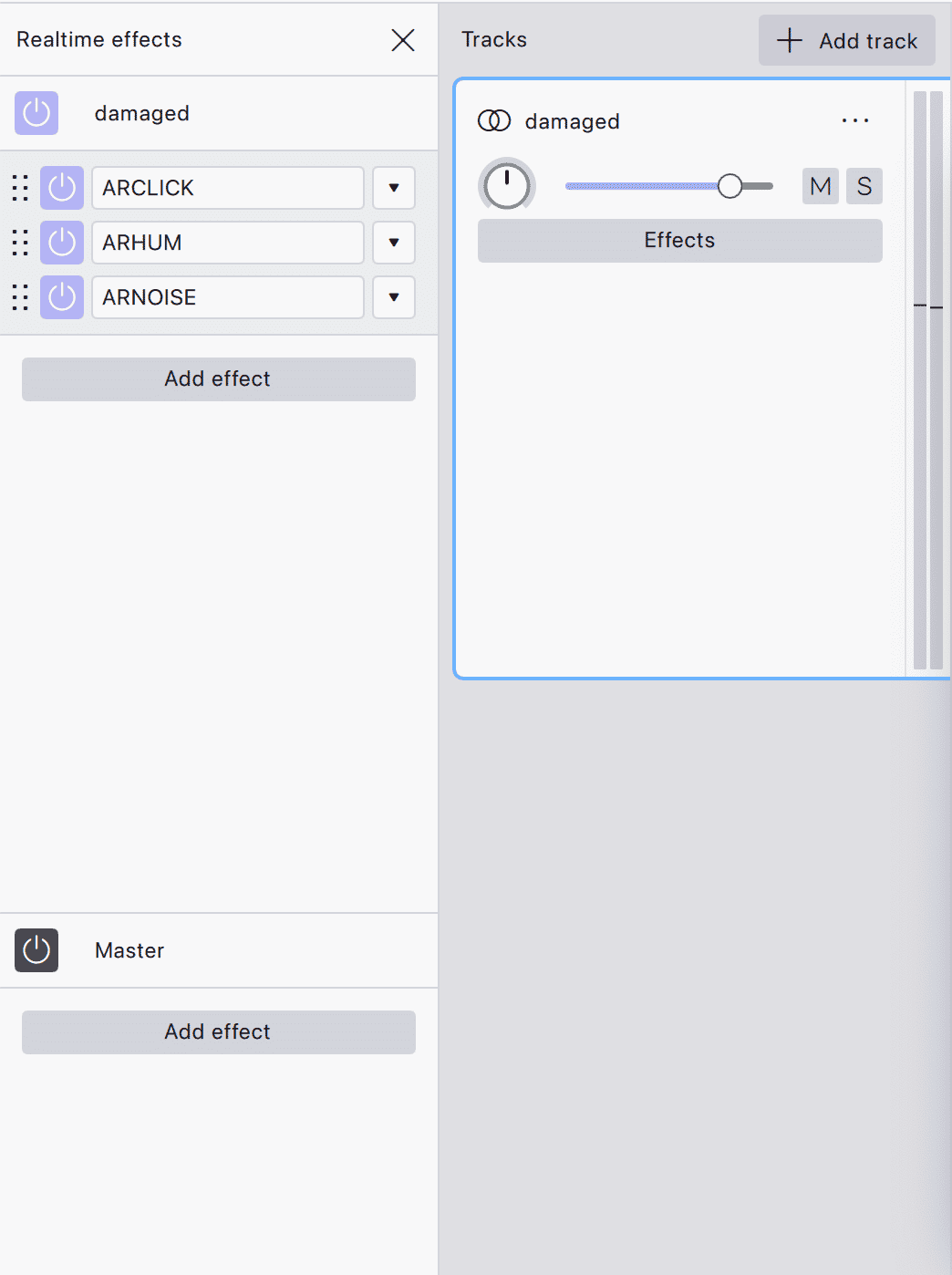
In the realtime panel the stack reads, top to bottom: ARCLICK, ARHUM, ARNOISE. Play the worst passages, adjust, then export with File ▸ Export audio; the chain is applied to the file. To cut a side into songs, see How to split a recording into tracks in Audacity.
Three plugins or the Repair Kit? ARCLICK, ARHUM and ARNOISE are sold separately. The Repair Kit adds three more Ajanss repair tools: ARROOM for room echo, ARLAYER for layer separation and ARSUP for ringing resonances. For records and tapes, the three are enough. Take the kit if you also clean up voices recorded in bad rooms.

What none of this can fix
- Wow and flutter. A wobble in pitch from a stretched tape or an off-centre record is not noise, so no denoiser touches it.
- Distortion from a worn groove. Once the stylus has damaged the groove, the distortion is part of the sound.
- A dull cassette. Lost treble is often a misaligned tape head, which needs fixing before the transfer, not after.
Common mistakes
- Working on the only copy. Keep the raw transfer and work on a duplicate.
- Denoising before declicking. Noise reduction smears clicks, and then nothing can find them.
- Learning the noise from a passage with music in it. The tool then removes part of the music everywhere.
- Removing every trace of hiss. The recording ends up dull and lifeless.
- Notching hum with the built-in filter on bass-heavy music. The bass note at 50 or 60 Hz goes with it.
FAQ
Next steps
How to record a turntable into Audacity covers the transfer, and How to split a recording into tracks in Audacity turns a restored side into separate songs.
Get Audacity and the repair plugins in one place: download MuseHub free.