How to write guitar tab in MuseScore Studio
To write guitar tab in MuseScore Studio, start a score from Create from template ▸ Solo ▸ Guitar + Tablature, which gives a standard staff with tab below it. For tab on its own, pick a guitar “(tablature)” instrument instead. Click the first bar of the tab staff, press N for note input, and type fret numbers. Up and Down move between strings, and Right moves to the next beat.
This guide covers choosing tab only or tab with standard notation, entering frets, rhythms and chords, adding tab to a score you already have, and making it sound like a real guitar on playback.
Tested on MuseScore Studio 4.7.6 on macOS. Shortcuts are the same on Windows unless noted.
Guitar sounds for MuseScore Studio
Tab, standard notation, or both
Tablature, or tab, shows guitar music as six lines, one per string, with a number for the fret to press. It is quick to read for guitarists, but it does not show rhythm as clearly as standard notation. MuseScore Studio can show tab on its own, or a standard staff with a linked tab staff underneath, where anything you enter on one appears on the other.
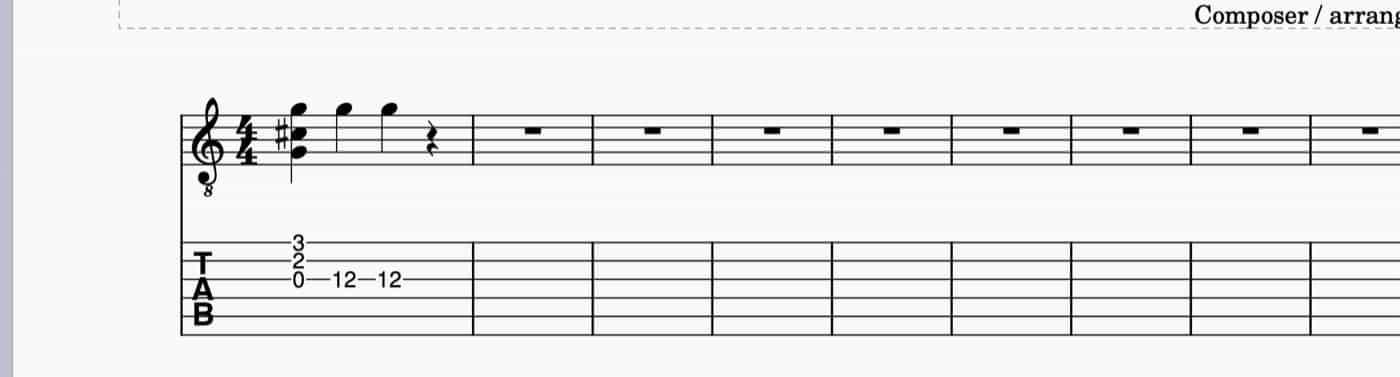
Here is a linked pair after a few notes went in on the tab staff. The standard staff above filled itself in.
How to set up a guitar tab score
MuseScore Studio offers two routes, and they give different results.
Standard notation plus tab
- Choose File ▸ New…
- Switch to the Create from template tab at the top of the New score window.
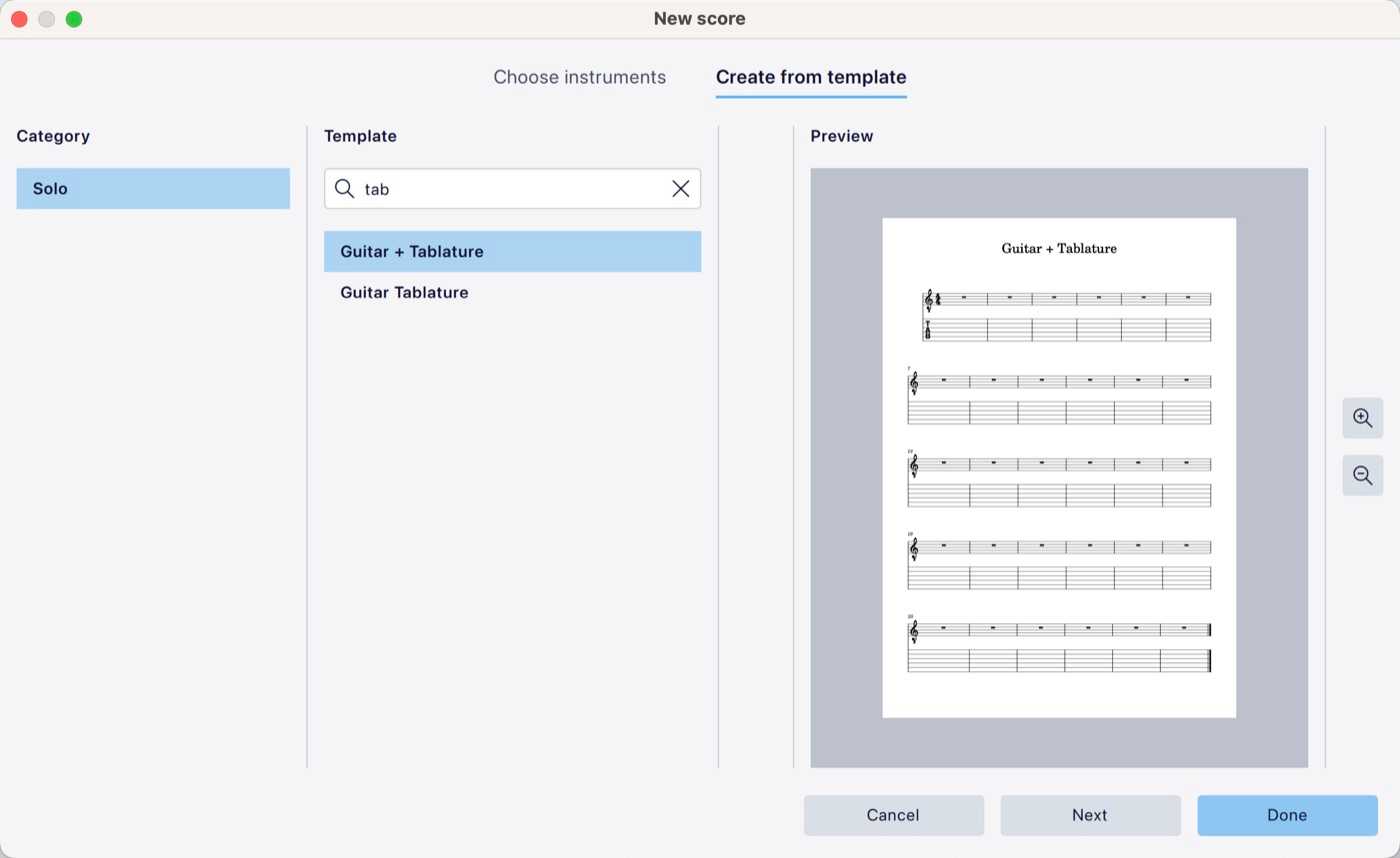
- Choose Solo ▸ Guitar + Tablature. Typing “tab” in the search box narrows the list to the two guitar tab templates.
- Click Done, or Next to set the title, key, time signature and number of bars first.
The template gives you a standard guitar staff with a linked tab staff below it, as the preview shows.
Tab only
In Choose instruments, open Strings – Plucked. The guitars marked “(tablature)” are Electric Guitar, Acoustic Guitar, Classical Guitar, 7-string Guitar and Bass Guitar. Each of them gives a tab staff with no standard staff above it. The Guitar Tablature template does the same job from the template tab.
How to enter notes on tab
- Click the first bar on the tab staff.
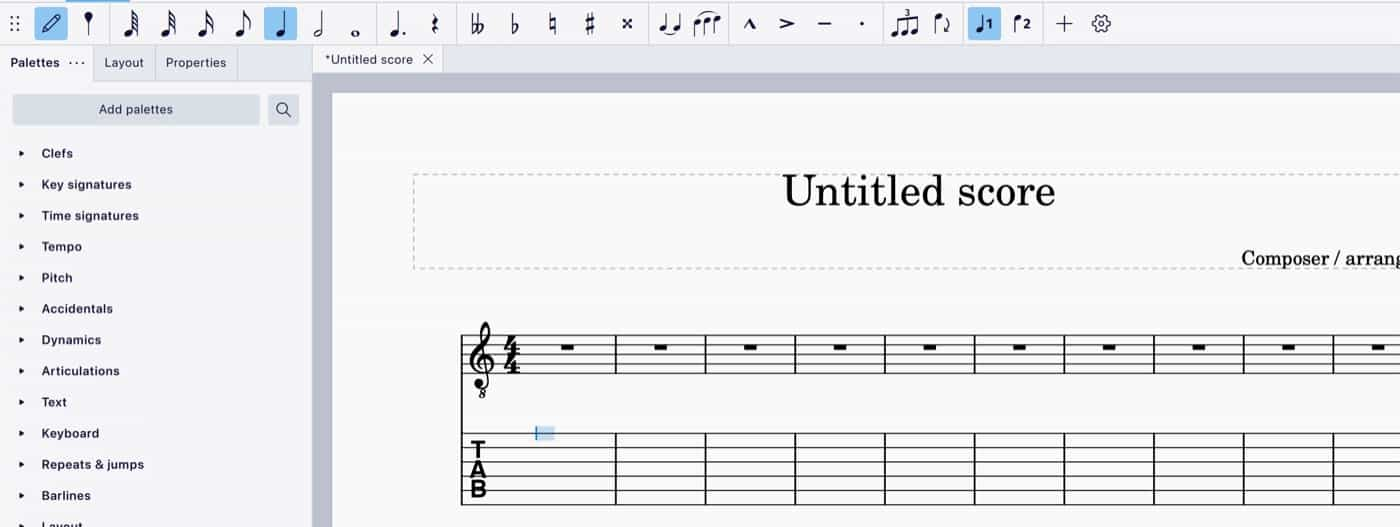
- Press N to start note input. A small blue cursor appears on the top string at the first beat.
This is note input on a fresh Guitar + Tablature score, with the cursor on the top string and the quarter note selected in the toolbar.
- Choose the duration in the toolbar. On a tab staff the number keys type fret numbers, so pressing 5 puts fret 5 on the string; it does not choose a quarter note. Click the duration you want in the note input toolbar before you type the fret. The quarter note is selected when note input starts.
- Move to a string with Up and Down.
- Type the fret number. The note appears on that string at that fret. For frets 10 and above, type both digits: 1 then 2 gives fret 12, even with a pause between the keys.
- To play two strings at once, press Up or Down to reach the next string and type another fret. The note joins the same beat as a chord, with no extra key needed.
- Press Right to move to the next beat.
- Press Esc when you are done.
For example, with a quarter note selected, type 3 on string 1, Down and 2, Down and 0, then Right. That gives a three-note chord on beat 1. Two more notes at fret 12 on beats 2 and 3 produce the bar in the first picture of this guide. If the score has a linked standard staff, the notes appear there at the same time. The handbook page on entering tablature covers rests, moving a note to another string and other tunings.
| Key | What it does on a tab staff |
|---|---|
| N | Starts note input |
| 0–9 | Types a fret number on the current string |
| Up / Down | Moves the cursor to the string above or below |
| Right | Moves to the next beat |
| Esc | Leaves note input |
How to add tab to a score you already have
A plain guitar score shows only standard notation. A linked tab staff adds tab under it and fills itself in from the notes already written, so this is also how to turn notation into tab.
- Open the Layout tab in the left panel, next to Palettes and Properties.
- Expand the guitar with the arrow next to its name to show its staff.
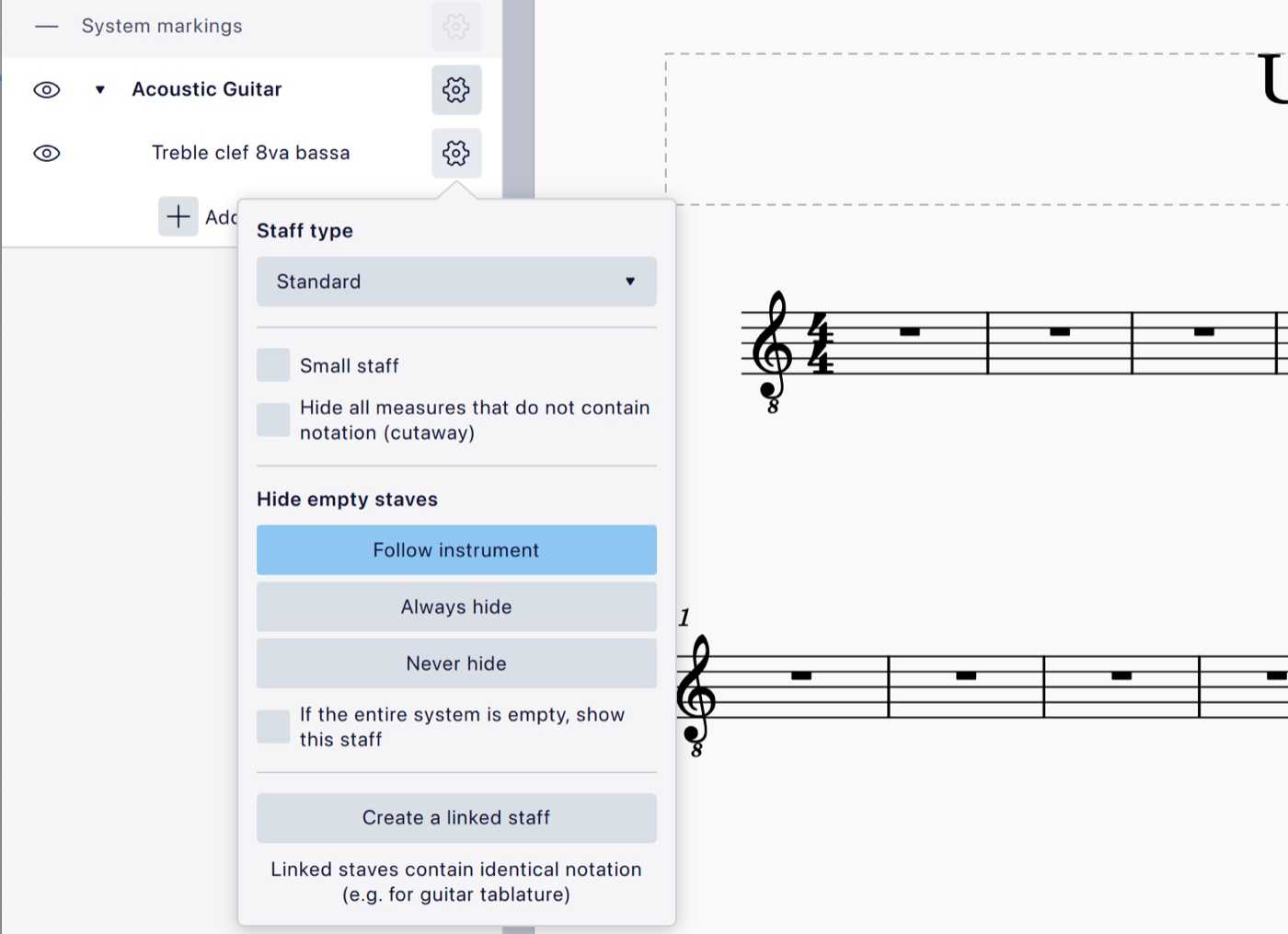
- Click the gear next to the staff and choose Create a linked staff. A new row, starting with “[LINK]”, appears under the first one. At this point it is a second standard staff.
The Create a linked staff button sits at the bottom of the staff’s settings.
- Click the gear next to the new row and set Staff type to a tab type, such as Tab. 6-str. common. The row is renamed “[LINK] Tablature” and the staff turns into tab.
With the staff type changed, the Layout panel lists the guitar’s two staves and the score shows both.
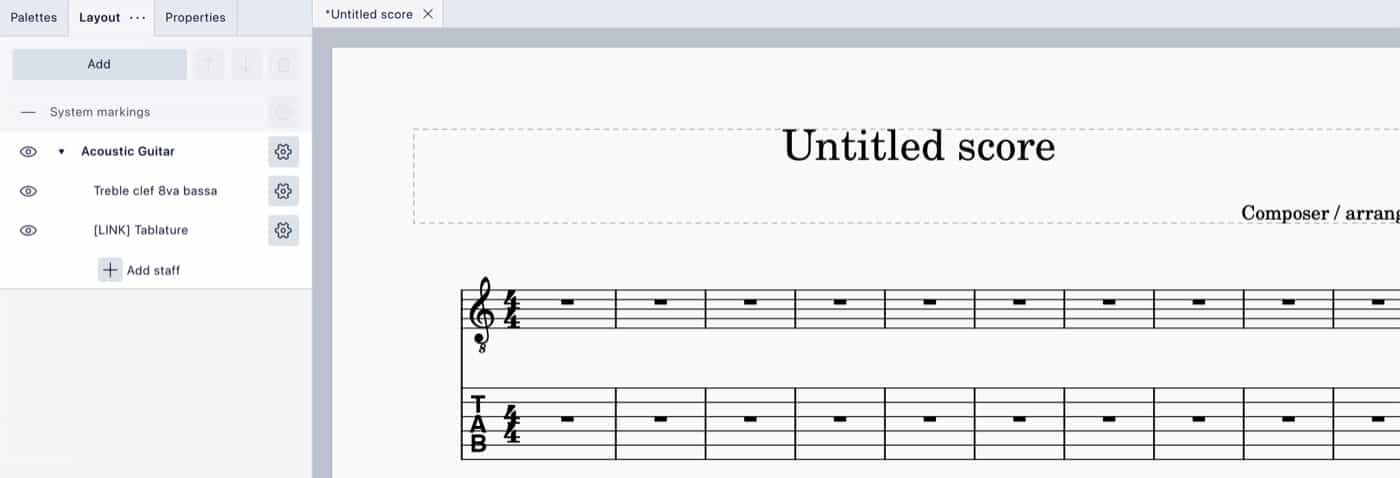
The common tab type shows rests and a time signature on the tab staff. For cleaner tab without them, pick one of the simple tab types instead.
Make the tab sound like a guitar
MuseScore Studio plays the tab back with the sound the staff uses. For a realistic guitar, use a MuseSounds guitar library. Muse Guitars Vol. 1 is free and covers acoustic, electric and bass guitar, and Muse Guitars Vol. 2 adds mandolin, banjo, 12-string and pedal steel; see Muse Guitars Vol. 2 for what it covers. MuseSounds play inside MuseScore Studio and install through MuseHub on Windows and macOS.

Common mistakes
- Pressing a number to set the duration. On a tab staff, numbers type frets. Pick the duration in the toolbar.
- Choosing a “(tablature)” instrument and expecting standard notation too. Those instruments are tab only. Use the Guitar + Tablature template, or add a linked staff afterwards.
- Entering on the wrong string. Check the cursor’s string before you type; the same pitch can be played on several strings.
- Pressing Right between the notes of a chord. Right moves to the next beat. Stay on the beat and change strings with Up and Down.
FAQ
Next steps
To change the key of a riff, see how to transpose in MuseScore Studio. To turn printed music into a score, see how to convert a PDF to MuseScore. New to MuseScore Studio? MuseScore Studio with Tutorial pairs it with a beginner video course.
Get MuseScore Studio and Muse Guitars Vol. 1 free in one place — download MuseHub free.