How to convert a PDF to MuseScore
To convert a PDF to MuseScore, open MuseScore Studio and choose File ▸ Convert file…. With a free MuseScore.com account, it turns a PDF of sheet music into a score online and adds it to your scores when it is ready. For printed pages you photograph or scan, Sheet Music Scanner is the other route: it exports a file MuseScore Studio opens directly.
This guide covers both routes step by step, how to open the result in MuseScore Studio, and how to clean up what the conversion gets wrong.
Tested on MuseScore Studio 4.7.6 on macOS.
From PDF to score



How PDF to MuseScore conversion works
A PDF of sheet music is a picture of the page. MuseScore Studio needs the music itself: which notes, in which order, on which staff. Optical music recognition (OMR) reads the image and rebuilds the notation as a score you can edit and play back.
The cleaner the PDF, the better the result. A PDF exported from notation software converts far more accurately than a phone photo of a worn photocopy.
Option 1: Convert file in MuseScore Studio
File ▸ Open is for score files. To turn a PDF into a score, the File menu has a separate Convert file… command.
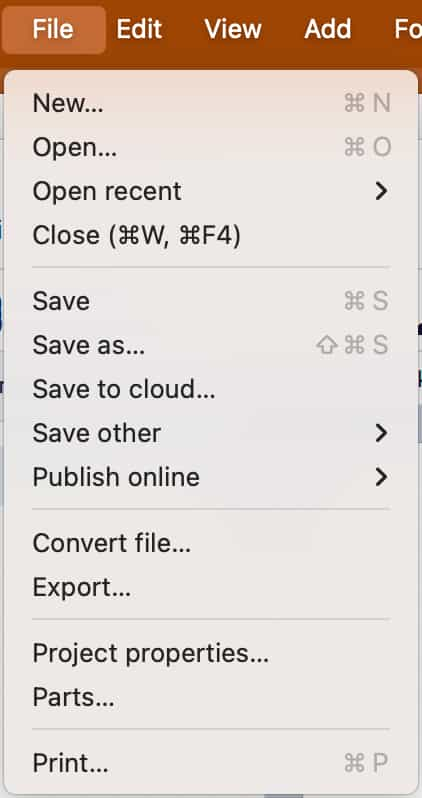
- Choose File ▸ Convert file…. If you are not signed in, MuseScore Studio asks you to log in or create a free MuseScore.com account first.
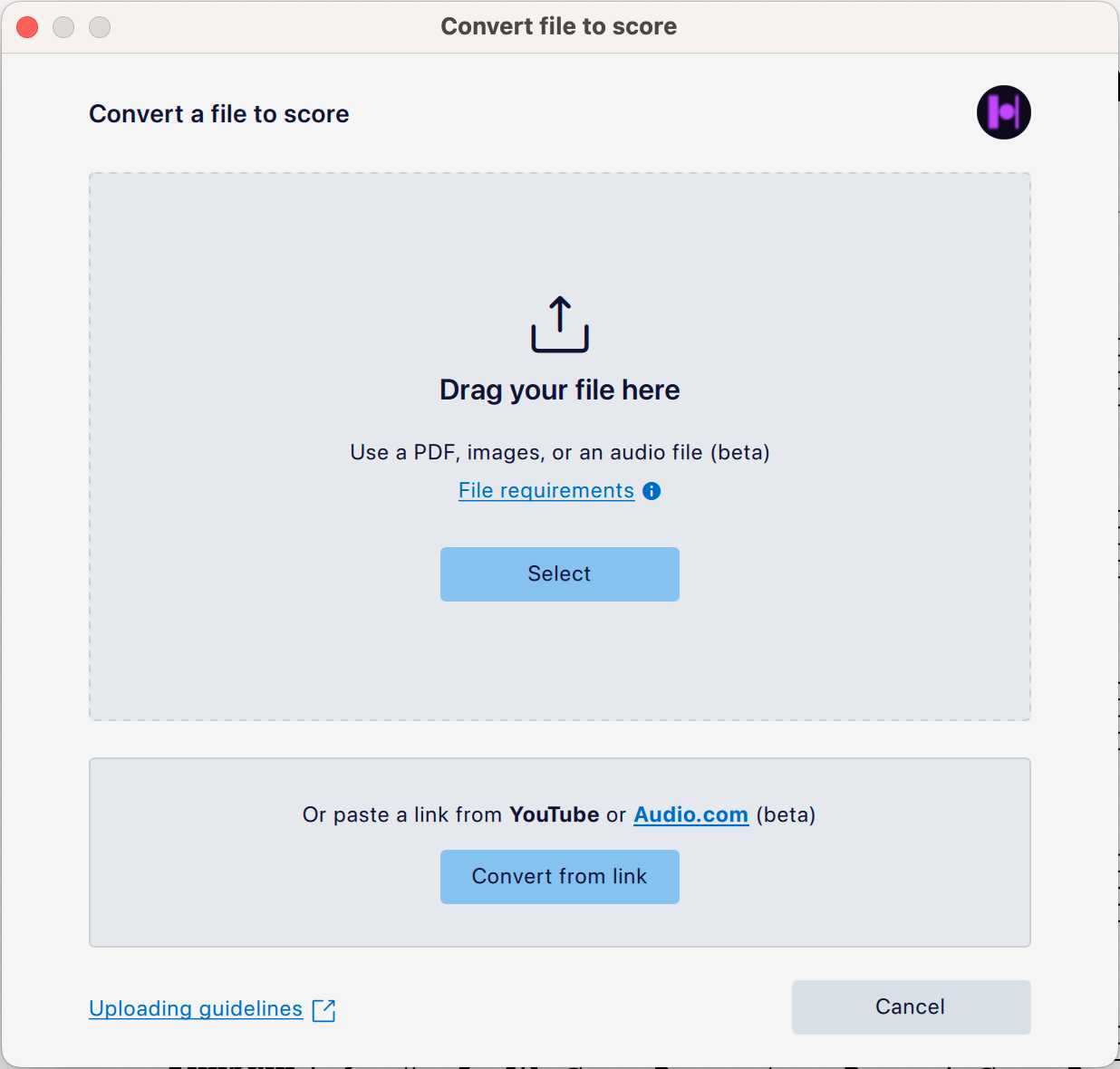
- Drag your PDF into the window, or click Select and choose it. The same window also takes images and, in beta, audio files and YouTube or Audio.com links.
- Wait for the conversion. It runs online, so you can keep working. MuseScore Studio tells you the score is being processed and notifies you when it is ready to open.
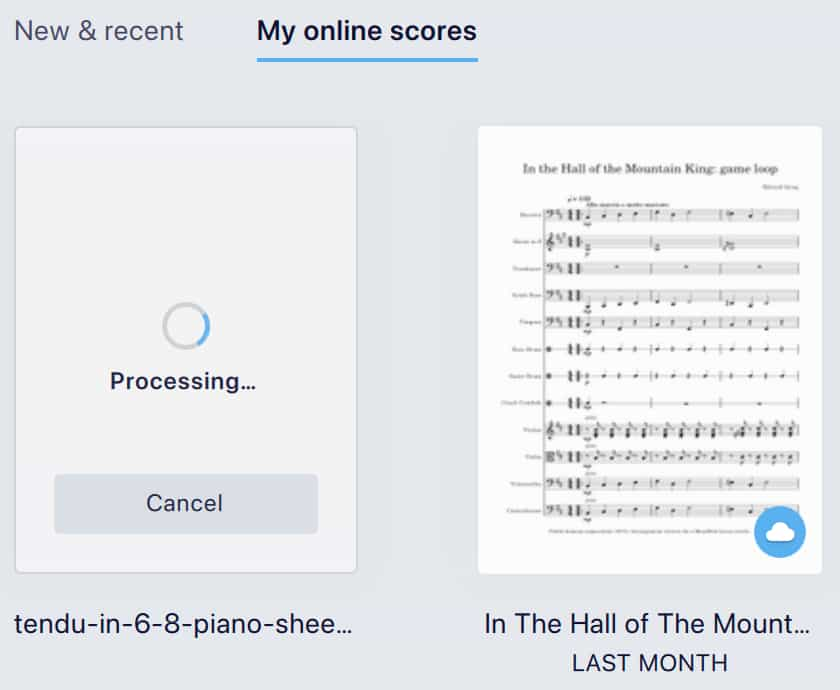
- Open the result from Home ▸ Scores ▸ My online scores. While it is still converting, its card there shows Processing….
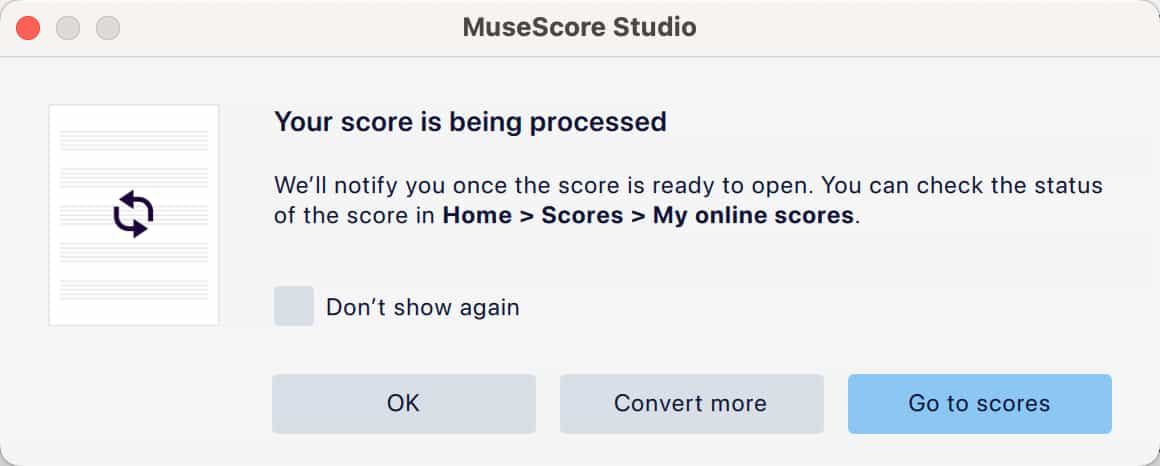
Conversion can take a while, especially for long or scanned scores. Start with a short, clean PDF if you want to see the result quickly.
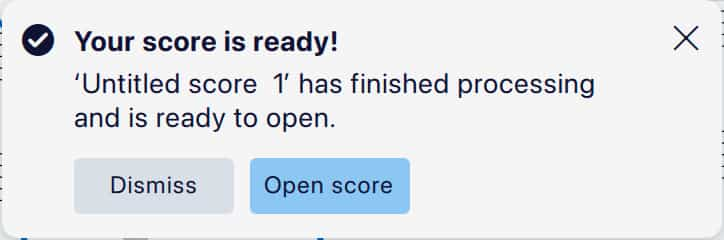
When the conversion is done, a Your score is ready! notice appears in MuseScore Studio. Click Open score to open it straight away, or Dismiss to open it later from My online scores.
Option 2: Sheet Music Scanner

Sheet Music Scanner from Halbestunde turns a photo or PDF of sheet music into a digital score you can export as MusicXML, MSCZ (MuseScore’s own format) or MIDI. It is the best-selling app on MuseHub.
To open its result in MuseScore Studio:
- Export the score from Sheet Music Scanner as MusicXML (.musicxml, .mxl or .xml) or MSCZ.
- In MuseScore Studio, choose File ▸ Open and select the file. It opens straight away as a new score, with no import settings to choose.
- Save it as a MuseScore file with File ▸ Save.
How to clean up the result
Recognition is never perfect, so play the score back and compare it with the PDF. The usual fixes:
- Wrong notes and rhythms. Check bar by bar against the original. Smudged or crowded passages go wrong most often.
- Missing ties, slurs and dynamics. Markings that touch other symbols are easy to miss.
- Lyrics. These are often misread or attached to the wrong notes. How to add lyrics in MuseScore covers fixing and re-entering them.
- Instruments. Check that each staff has the right instrument, so playback sounds right.
Tips for a better conversion
- Start from the cleanest source. A PDF exported from software beats a scan, and a flat, well-lit scan beats a phone photo.
- Convert one piece at a time. Split long books into single pieces first.
- Check the first piece before converting the rest. If it comes out badly, a better source will save more time than fixing every bar.
FAQ
Next steps
New to MuseScore Studio? MuseScore Studio with Tutorial pairs it with a beginner video course. Once your score is in, MuseSounds libraries like Cantai make it sound real on playback. To move the music into another key, see how to transpose in MuseScore Studio.
Get Sheet Music Scanner and the rest in one place — download MuseHub free.