How to use MuseSounds in MuseScore Studio
To use MuseSounds in MuseScore Studio, install the free MuseHub app, install the MuseSounds libraries you want from its MuseSounds section, then open (or restart) MuseScore Studio. New scores use MuseSounds automatically; for an existing score, open the Mixer (View ▸ Mixer, or F10) and choose the MuseSounds library in each instrument’s Sound row. Dynamics, hairpins, slurs and articulations in your notation then shape the playback.
This guide covers what MuseSounds are, what you need, the five steps in detail, the notation the engine responds to, the mistakes that make a score still sound like MIDI, and how the free collection relates to the paid libraries and MuseSounds Pro.
Get started with MuseSounds


What MuseSounds are
MuseSounds are sample libraries — recordings of real players, note by note and technique by technique — built for MuseScore Studio’s playback engine. Where a general-purpose SoundFont plays one recording of a violin at every dynamic, a MuseSounds library holds separate recordings for soft and loud, legato and staccato, arco and pizzicato, and the engine chooses among them from what you wrote in the score. That is why a score that sounded like a ringtone with the default MS Basic sounds like an ensemble with MuseSounds.
The core collection from Muse Group is free: Muse Strings, Muse Brass, Muse Woodwinds, Muse Percussion, Muse Choir, Muse Keys, Muse Harp, Muse Guitars Vol. 1 and Muse Handbells, plus the free Vienna Bass Trombones from Vienna Symphonic Library. Partner libraries from Vienna Symphonic Library, Spitfire Audio, Orchestral Tools, Cinesamples and Audio Imperia are sold individually or, for many of them, included in the MuseSounds Pro subscription. MuseSounds are available only through MuseHub and play back only in MuseScore Studio. What are MuseSounds? covers the free libraries, the paid ones and what the Pro subscription adds, with the same bars of Dvořák played three ways.
What you need
- MuseScore Studio 4 or later — free. MuseScore 3 cannot use MuseSounds.
- The MuseHub app — free, for macOS and Windows. It installs and updates the libraries.
- Disk space. Sample libraries are large; the product page for each shows its download size. Check before installing a full orchestra.
Step 1: Install MuseHub
Download MuseHub from musehub.com. On macOS, drag the app into your Applications folder; on Windows, run the installer. Sign in or create a free account when prompted — purchases and library ownership are tied to it.
Step 2: Install MuseScore Studio
If you do not have MuseScore Studio yet, install it from the Apps section in MuseHub: it downloads, installs and can open the app for you. If you already have it, make sure it is version 4 or later.

Step 3: Install the MuseSounds libraries
In MuseHub, open the MuseSounds section. Start with the free Muse collection — it covers a full orchestra, choir, keys, harp and guitars — and add partner libraries later if you want a particular sound. Click Get on each library and let it download. Libraries are big, so give the first batch some time.
Step 4: Open or restart MuseScore Studio
MuseScore Studio detects installed libraries when it starts. If it was open while you installed, quit and reopen it — this is the most common reason a freshly installed library does not appear.
Step 5: Assign the sounds in your score
Create a new score and add instruments as usual. Instruments with a matching MuseSounds library use it automatically.
For an existing score, or to choose between two libraries for the same instrument, open the Mixer with View ▸ Mixer or F10. The Sound row shows which sound set each track uses — MS Basic, a VST instrument, or a MuseSounds library. Click it to change the instrument’s sound. This is also where you pick, say, Vienna Strings over Muse Strings when both are installed.
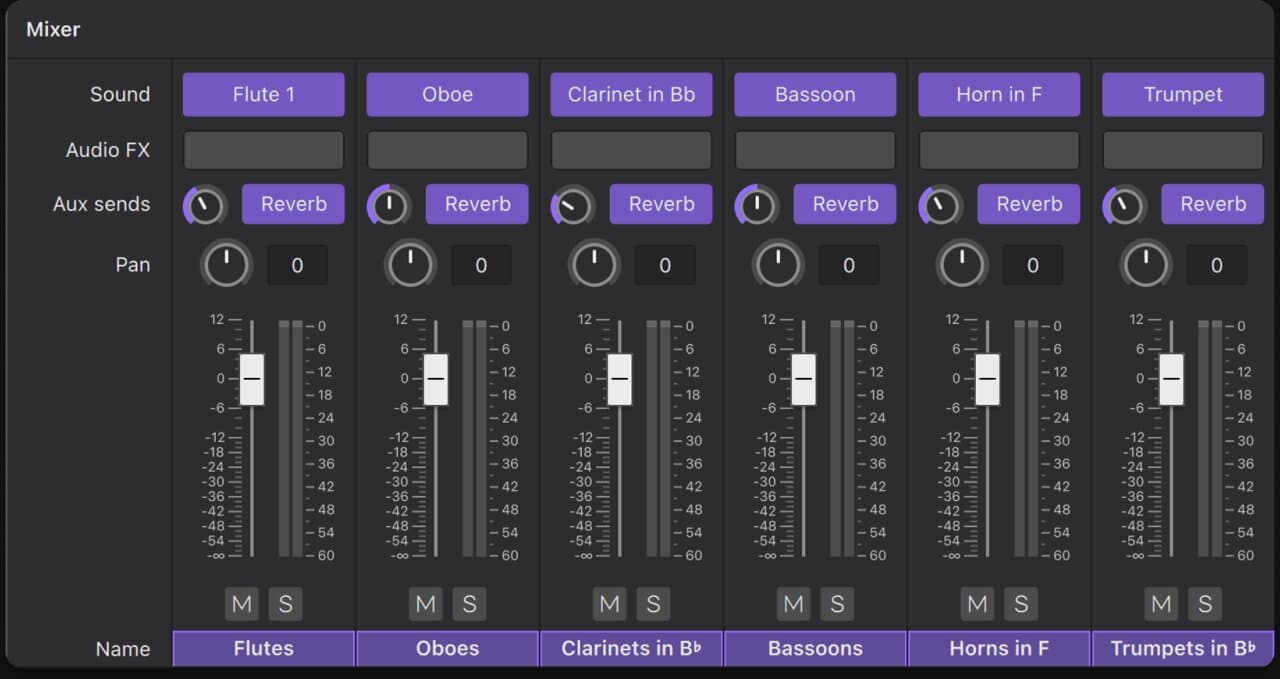
Press play. If the score still sounds like the old default, check the playback profile in the playback toolbar’s setup and make sure MuseSounds, not MS Basic, is selected.
Write for the engine: notation that changes the sound
The libraries respond to what is on the page, so the way you notate directly shapes the playback:
- Dynamics and hairpins select dynamic layers and shape crescendos. A score with no dynamics plays at one level and sounds flat — add them.
- Slurs produce legato transitions between notes; without a slur, notes are re-attacked.
- Articulations — staccato, tenuto, accents, marcato — switch to the matching short or emphasized samples.
- Technique text such as pizz., arco, con sord. and tremolo switches playing technique for strings; mutes do the same for brass.
- Tempo and expression text are read as tempo changes and phrasing.
Here is what the free collection sounds like on a real score: film orchestrator and composer Nicholas Dodd’s piece played back from the free Muse libraries.
Common mistakes
- Installing while MuseScore Studio is open. Restart it; the libraries appear.
- An old score stuck on MS Basic. Scores keep their sound assignments. Open the Mixer and switch each instrument’s Sound to the Muse library.
- No dynamics or slurs in the score. The engine cannot shape what is not written. Even a few dynamics and slurs transform the result.
- Expecting a plugin. MuseSounds are not VST instruments and do not load in a DAW. Export audio from MuseScore Studio (File ▸ Export) to use a mock-up elsewhere.
- Running out of disk space mid-install. Check sizes on the product pages and install a section at a time.
Beyond the free collection: paid libraries and MuseSounds Pro
The free libraries are a complete orchestra, not a demo. The paid partner libraries add a different character or a specialist sound — Vienna Symphonic Library for a classic concert-hall orchestra, Audio Imperia’s Nucleus and Solo for cinematic writing, Muse Pipe Organ, Muse Guitars Vol. 2 and many more. Each is bought once and kept.
MuseSounds Pro is the subscription alternative: for $19.99 a month or $199.99 a year it adds a growing set of premium libraries — 29 at last count, including the Vienna Symphonic Library orchestra and Spitfire Audio’s Symphony series — on top of the free collection. There is no trial. If you cancel, the Pro libraries stop at the end of the billing period; your scores stay intact and anything you bought outright stays yours. Not every paid library is in Pro — the Orchestral Tools and Cinesamples ranges, for instance, are sold separately — so check the subscription page for the current list.

FAQ
Next steps
If you want the background rather than the buttons, what MuseSounds are explains what is free, what is paid and what the subscription adds. Once the free collection is playing, hear what the partner libraries add in Vienna Symphonic Library on MuseHub and Audio Imperia Nucleus and Solo, or compare the field in the best orchestral libraries. If you are choosing notation software in the first place, the best music notation software compares MuseScore Studio with the alternatives. Browse MuseSounds on MuseHub, or download MuseHub free to start.